51YUNJI / BUY WITH CONTEXT

Cloud PCs for work and creative projects guides

Explore English articles for this topic.

20 articles in English

Page 1 of 2
How to judge whether cloud PC has improved your work efficiency? Record completion under the same tasks and conditions; record the same task; compare completions and steps; incorporate failures and wait times
CLOUD PCS

How to assess whether a cloud PC improves your productivity

Compare the total time taken and errors for the same tasks, rather than just how smooth the desktop looks. Transferring files, troubleshooting, and waiting also count as time. This guide uses everyday examples, practical checks and common pitfalls to help you decide what to do next.


How to hand over the cloud PC working environment? Organize tasks, files, and environments together; list deliverables and descriptions; export necessary data; test-drive with recipients; formally assign permissions and reclaim access that is no longer needed.
CLOUD PCS

How to hand over a cloud PC work environment

The handover should focus on results, file structure, tool versions and permissions, rather than just handing over a login password. Receivers must be able to find and open materials independently. This guide uses everyday examples, practical checks and common pitfalls to help you decide what to do next.

There is not enough disk space on cloud PC. Where should I clean it up first? First distinguish cache, application data and personal files; check the remaining space of each disk; locate files by size; back up important results; use the cache cleaning method supported by the application.
CLOUD PCS

Cloud PC disk space is low: what to clean up first

Find the file types that take up space first, and then process temporary files that can be reconstructed. Don't directly delete system directories you don't understand. This guide uses everyday examples, practical checks and common pitfalls to help you decide what to do next.
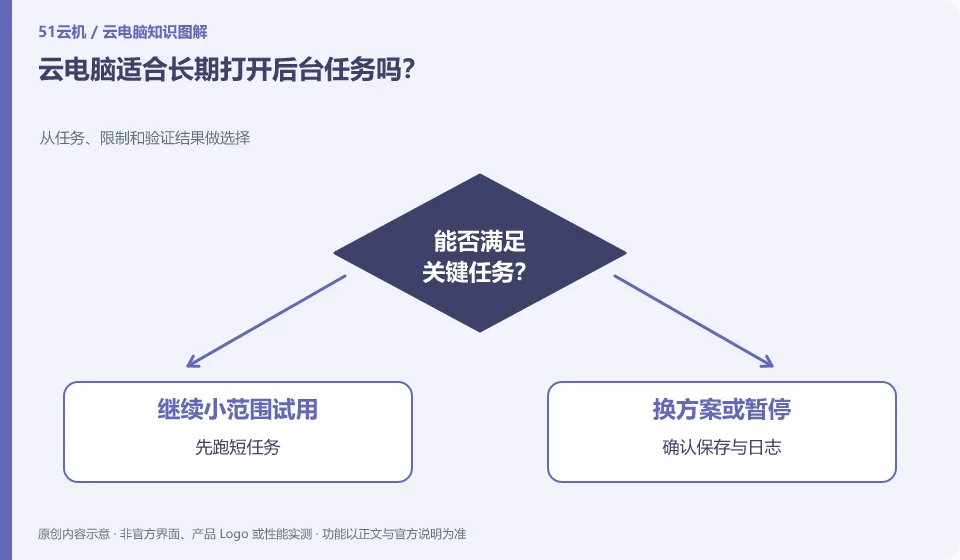
Is cloud PC suitable for keeping background tasks open for a long time? Choose from tasks, limits, and validation results; run short tasks first; confirm saves and logs; set discoverable prompts for failures; check availability and expense rules.
CLOUD PCS

Is a cloud PC suitable for long-running background tasks?

It depends on whether the task is allowed, whether the system is hibernating, and billing and session rules. Closing the local window does not necessarily end the remote task, nor does it guarantee that the task will continue forever. This guide uses everyday examples, practical checks and common pitfalls to help you decide what to do next.

What should you pay attention to when saving customer files in cloud PC? Separate sensitive data and test data from authorization boundaries; separate permissions by project; share only necessary files; set appropriate access periods; review authorizations after delivery.
CLOUD PCS

Storing client files on a cloud PC: what to consider

First confirm whether the customer allows the storage environment and who can access, download and back up. Putting files remotely does not mean that confidentiality requirements have been met. This guide uses everyday examples, practical checks and common pitfalls to help you decide what to do next.

Can cloud PC help freelancers organize their work? Check inputs, connections and outputs in specific scenarios; build an independent directory for the project; confirm customer data requirements; keep a list of tools and dependencies; regularly export independently deliverable results.
CLOUD PCS

Can a cloud PC help freelancers organize their work?

It may provide a fixed working environment, but project data, client requirements and backups still need to be organized yourself. Convenience should be based on deliverability and exitability. This guide uses everyday examples, practical checks and common pitfalls to help you decide what to do next.

Can cloud PC connect to the company intranet? Check throughput, latency and stability separately; confirm the connection methods allowed by the organization; check addresses and access rights; let the administrator confirm the policy
CLOUD PCS

Can a cloud PC connect to a company intranet?

Access is only suitable if authorized by the company and the network plan has been configured. Being able to access the Internet does not mean that you can access internal systems. This guide uses everyday examples, practical checks and common pitfalls to help you decide what to do next.
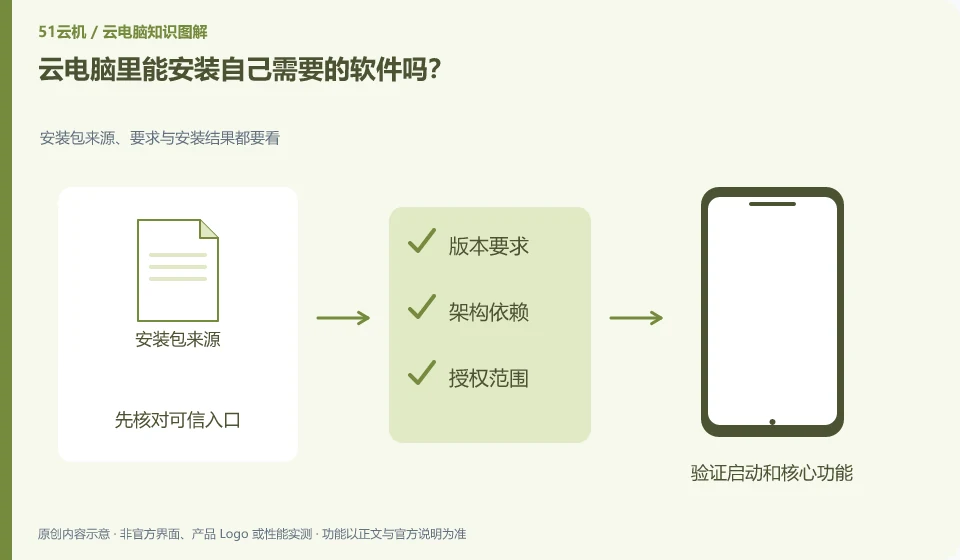
Can I install the software I need on my cloud PC? Check the source, requirements and installation results of the installation package; check the official system requirements of the software; confirm installation permissions and permissions; try tasks that do not contain sensitive data first; record the installation source and version.
CLOUD PCS

Can you install your own software on a cloud PC?

Depends on permissions, system compatibility and usage rules. Having a desktop does not mean it has administrator rights, nor does it mean it includes a software license. This guide uses everyday examples, practical checks and common pitfalls to help you decide what to do next.

Will browser bookmarks and login follow cloud PC? Conduct a small-scale trial to confirm key capabilities item by item; record browser users; export important bookmarks; check the synchronization range; and clean up the old environment after verifying the new environment.
CLOUD PCS

Do browser bookmarks and logins stay with the cloud PC?

They may be saved in the remote user environment, or they may rely on browser account synchronization. It is necessary to distinguish between desktop persistence and account synchronization. This guide uses everyday examples, practical checks and common pitfalls to help you decide what to do next.
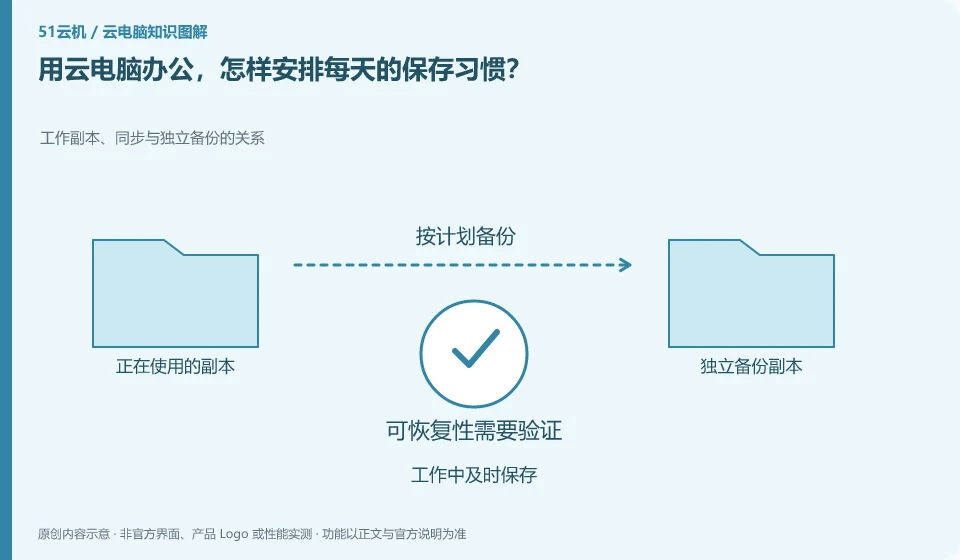
How to arrange daily saving habits when using cloud PC for office work? The relationship between working copy, synchronization and independent backup; save in time during work; keep independent copy before finishing; open the copy regularly for checking
CLOUD PCS

Daily file-saving habits for cloud PC work

Turn active saving, stage copy and pre-exit verification into a fixed process. Autosave can assist, but cannot be assumed to be enabled for every app. This guide uses everyday examples, practical checks and common pitfalls to help you decide what to do next.