
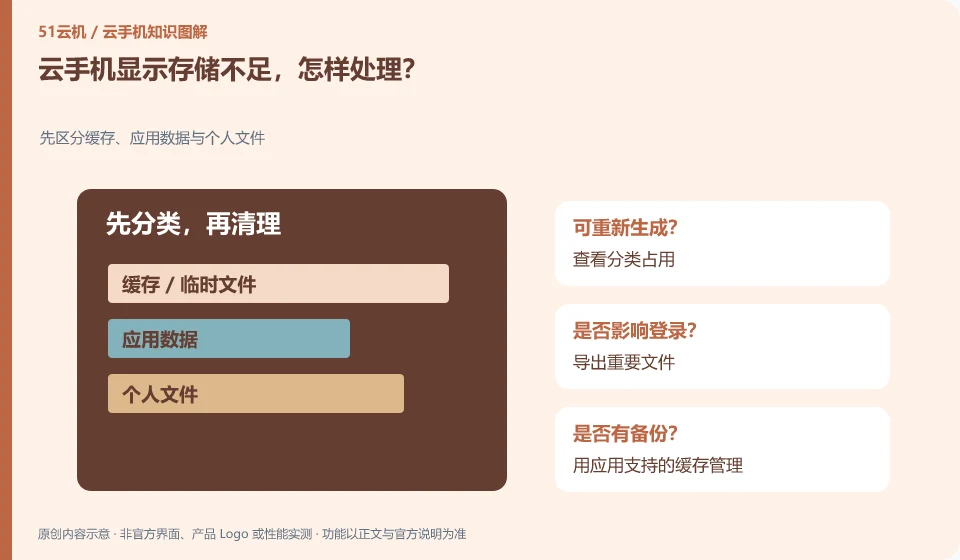
First distinguish the cache occupied by installation packages, downloads, media and applications, and then process the content that can be confirmed to be unnecessary. Do not delete system directories at will.
Understand the essentials
The application's own data and shared files may be in different locations, and clearing one directory may not necessarily solve the problem of another.
A practical example
Hypothetical example: Repeatedly downloaded installation packages can be checked and sorted, but draft notes cannot be used as cache clearing.
What to check or try
- View category occupancy.
- Export important files.
- Use application-supported cache management.
- Recheck the remaining space after cleaning.
It can be sorted by "unique data, existing copies, and rebuildable cache". Prioritize to confirm that existing copies can be read, and then clean up duplicate content. After cleaning, restart the app and check its functionality to avoid deleting a lot of files in one go only to find that you can no longer use it.
An easy-to-miss detail
Do not use "Clear All Data" as the default cleaning method.
Continue reading
Back to Cloud phones: troubleshooting
Notes and further reading
Android app storage overview;Android app permissions overview。
This introductory guide was prepared by 51Yunji from public information with AI-assisted drafting. Examples are hypothetical, not hands-on product tests or promises of results. Follow the current product, version and official instructions for specific features and procedures. Compiled on October 26, 2026.