
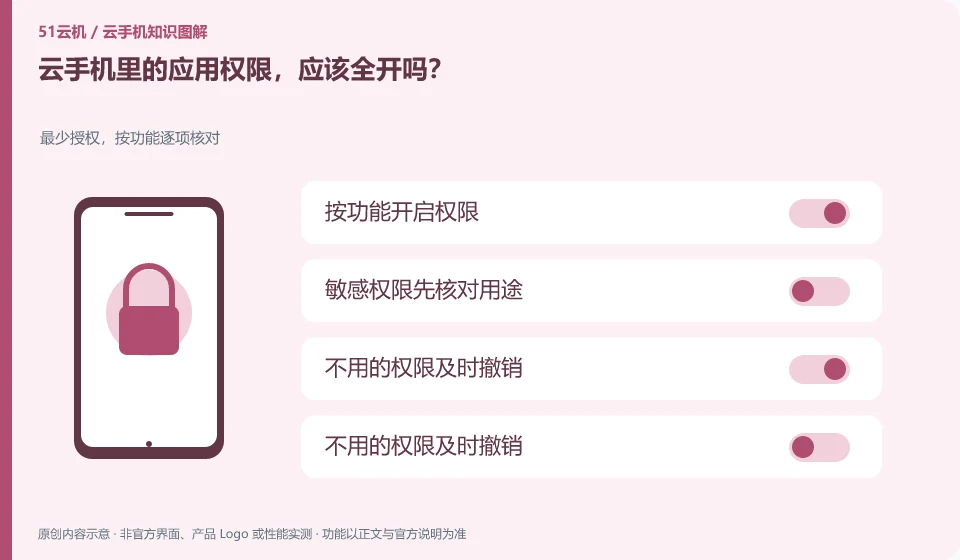
It shouldn't be. Grant necessary permissions for specific tasks, starting with understanding why the app needs the camera, microphone, file, or location.
Understand the essentials
Fully enabled may increase the visible range of irrelevant data, and does not guarantee that compatibility issues will be resolved.
A practical example
As a hypothetical example: if an app that only edits text suddenly asks for access to all photos, you should first confirm the purpose and alternatives.
What to check or try
- Read the tips one by one.
- Limited scope preferred.
- Review after use.
- Unnecessary permissions are promptly revoked.
You can deny permissions that are temporarily unnecessary and wait until you actually use a certain function. If rejection renders functionality unavailable, the hint itself is a clue to the dependency. The solution should be specific to that function, without having to turn on all authorizations at the same time.
An easy-to-miss detail
When a certain function is unavailable, check the explanation first and do not use full authorization as the default troubleshooting method.
Continue reading
- Will logging in on a cloud phone sign you out of your local phone?
- Does Google Play access mean every app will work on a cloud phone?
Back to Cloud phones: apps and data
Notes and further reading
Android app storage overview;Android app permissions overview。
This introductory guide was prepared by 51Yunji from public information with AI-assisted drafting. Examples are hypothetical, not hands-on product tests or promises of results. Follow the current product, version and official instructions for specific features and procedures. Compiled on October 26, 2026.