
Determined by the application's session rules, some allow multiple devices, while others restrict or require re-authentication. Cloud Phone cannot change the rules for the application.
Understand the essentials
Login strategies for different systems or application versions may change, and one experience cannot be extended to all accounts.
A practical example
Hypothetical example: after logging in remotely, you receive a new device prompt locally. You should check whether it is the operation you just performed.
What to check or try
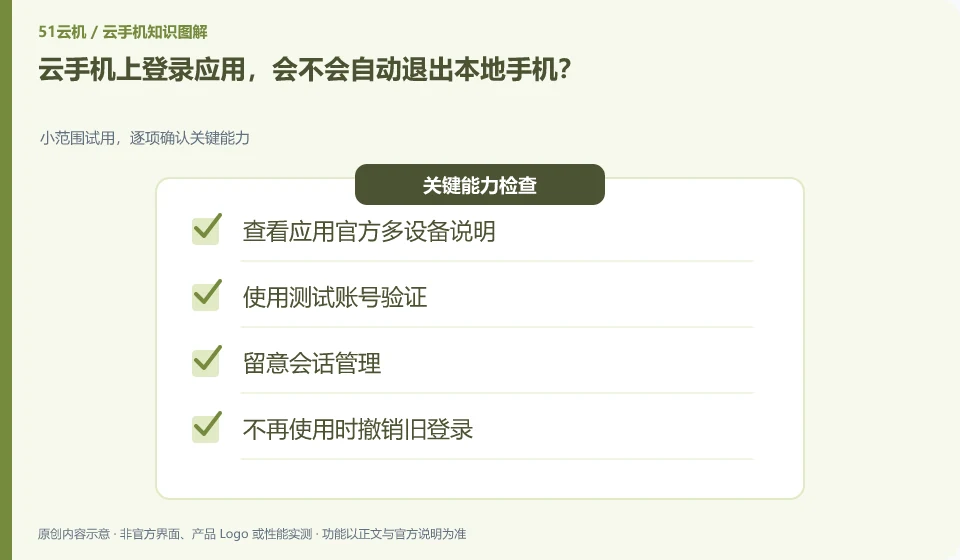
- Check out the app's official multi-device description.
- Verify using a test account.
- Pay attention to session management.
- Revoke old logins when no longer in use.
When you receive a new device reminder, check the time, service, and your actions. If it is not done by yourself, first check the session security using the method supported by the application. Don’t ignore alerts just to keep things convenient, and don’t take all alerts as proof that your account has been compromised.
An easy-to-miss detail
Do not use tools that bypass authentication for maintaining multi-device sessions.
Continue reading
- Can a cloud phone receive an app's SMS verification code?
- Should you enable every app permission on a cloud phone?
Back to Cloud phones: apps and data
Notes and further reading
Google Play Integrity setup;Android app storage overview。
This introductory guide was prepared by 51Yunji from public information with AI-assisted drafting. Examples are hypothetical, not hands-on product tests or promises of results. Follow the current product, version and official instructions for specific features and procedures. Compiled on October 26, 2026.