
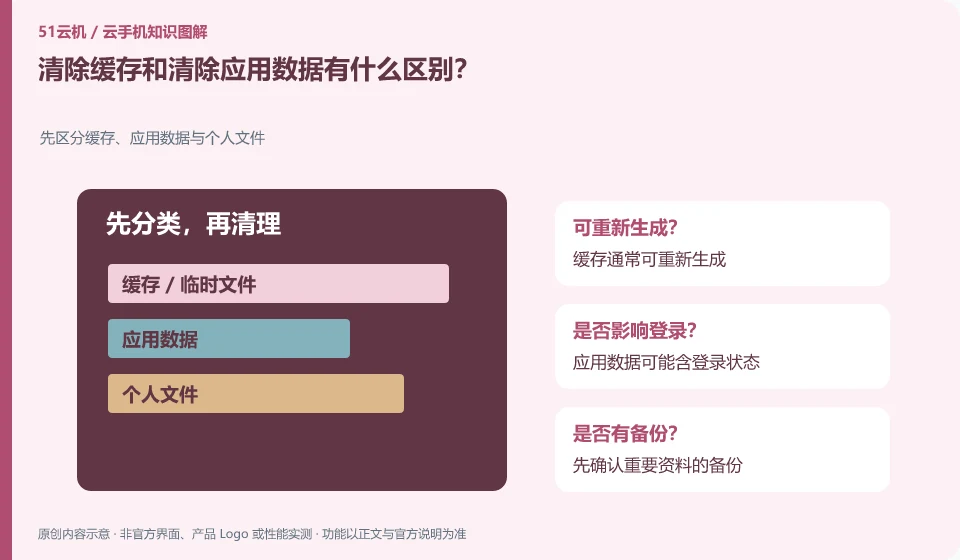
Caches are typically temporary content that can be regenerated; clearing data may remove login status, settings, and locally saved information. The details are subject to application behavior.
Understand the essentials
The two buttons are often in adjacent positions, but have different functions and cannot be replaced easily.
A practical example
Hypothetical example: If you click Clear Data to free up space, the notes may not be retrieved locally.
What to check or try
- First confirm whether the content has been synchronized or exported.
- Document how to recover your account.
- Prefer using the app's own cleaning options.
- Check after operation.
When you're not sure whether something is cached, check the app's own help first. Content that can be re-downloaded is handled differently than drafts that can only be found locally. Having a readable copy before cleaning is more reliable than trying to restore after cleaning.
An easy-to-miss detail
Do not consider clearing data as a risk-free "speed up" method without first verifying the backup.
Continue reading
- What to do when a cloud phone app stops working after an update
- Will uninstalling a cloud phone app delete your data?
Back to Cloud phones: apps and data
Notes and further reading
Android app storage overview;Android app permissions overview。
This introductory guide was prepared by 51Yunji from public information with AI-assisted drafting. Examples are hypothetical, not hands-on product tests or promises of results. Follow the current product, version and official instructions for specific features and procedures. Compiled on October 26, 2026.