
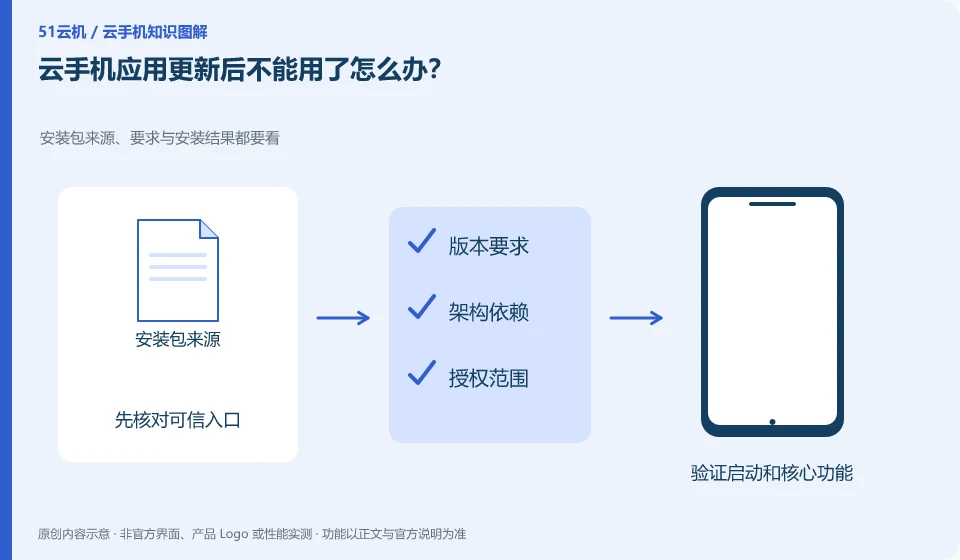
First record the versions and errors before and after the update, check official compatibility changes, and then use the test environment to reproduce. Do not overwrite all original data first.
Understand the essentials
Updates may change minimum system requirements, permissions, or login processes and are not necessarily a failure of cloud resources.
A practical example
Hypothetical example: the old version can be started, but the new version requires a higher Android version. The requirements should be checked instead of just clearing the cache.
What to check or try
- Save exportable data.
- View update notes.
- Record the environment version.
- Provide replication to application and platform support.
If the data is important before updating, you can keep a copy of the stage that allows export and note the current version. After updating, first confirm the core process with ordinary materials. Do not use official data as the first compatibility test, and do not assume that the old version can read the data that has been rewritten by the new version.
An easy-to-miss detail
If you don’t look for the so-called available old version from unknown channels, the returned version may not be compatible with the new data.
Continue reading
- Does Google Play access mean every app will work on a cloud phone?
- Clearing cache versus clearing app data: what is the difference?
Back to Cloud phones: apps and data
Notes and further reading
Google Play Integrity setup;Android app storage overview。
This introductory guide was prepared by 51Yunji from public information with AI-assisted drafting. Examples are hypothetical, not hands-on product tests or promises of results. Follow the current product, version and official instructions for specific features and procedures. Compiled on October 26, 2026.