
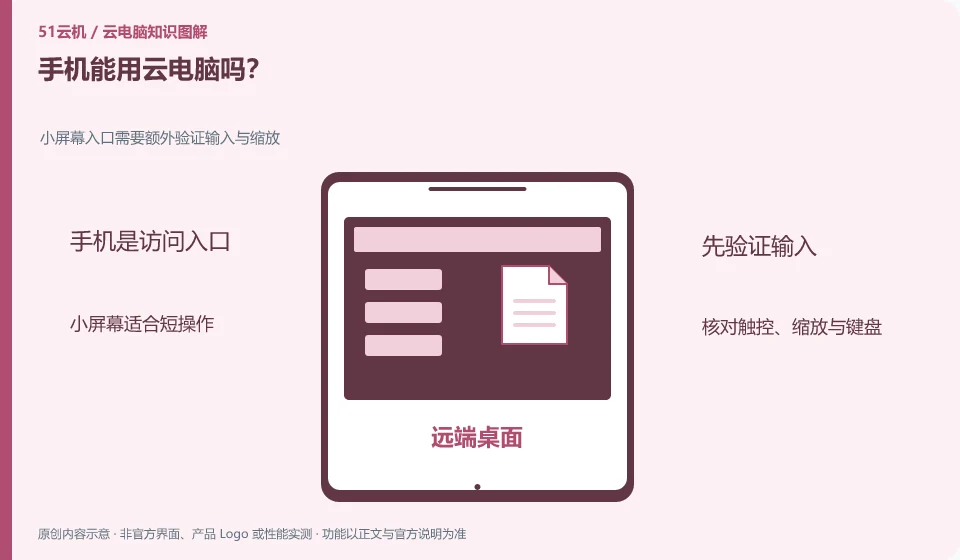
Some products support mobile clients or mobile browsers, but being able to display the desktop and being able to complete work efficiently are two different things. Small screen and input methods are key.
Understand the essentials
Desktop software is often designed with a mouse and keyboard in mind, so clicking, dragging, and key combinations on a touch screen may not be easy. Compatibility also depends on the service and client.
A practical example
Hypothetical example: using a mobile phone to temporarily confirm a report is acceptable; continuously modifying a large table may require a keyboard, mouse, and a larger screen.
What to check or try
- Check the phone system support first.
- Try zoom, long press and input methods.
- Time it with a real task and decide whether to use it as a long-term entry.
Short viewing times and long editing times should be evaluated separately. You can try to continuously modify a small piece of text, select a row of tables, and switch windows; if these basic actions are laborious, the problem does not necessarily require stronger cloud resources, but may require a suitable input device.
An easy-to-miss detail
Don’t understand that mobile phone connectivity means that all desktop applications have the same touch experience as the mobile version.
Continue reading
- Browser or dedicated client: how should you connect to a cloud PC?
- Is a tablet a good way to access a cloud PC?
Back to Cloud PCs: getting started
Notes and further reading
Azure Virtual Desktop overview;Windows 365 Enterprise。
This introductory guide was prepared by 51Yunji from public information with AI-assisted drafting. Examples are hypothetical, not hands-on product tests or promises of results. Follow the current product, version and official instructions for specific features and procedures. Compiled on October 26, 2026.