
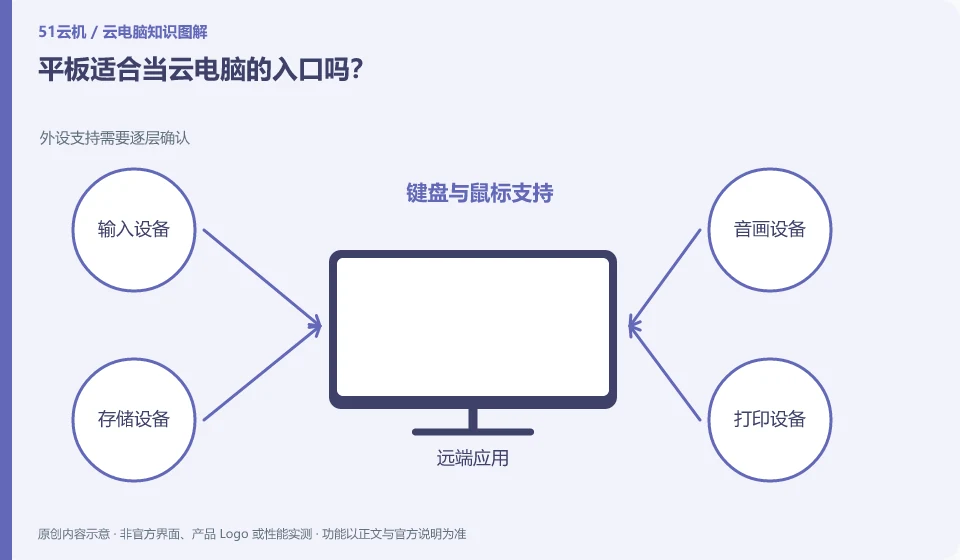
Tablets can become portable portals, especially suitable for reading and light modifications; whether they are suitable for main work depends on the keyboard, mouse, screen and commonly used applications.
Understand the essentials
The tablet's own system and the remote system each have a layer of shortcut keys and permissions, and input methods, file selection, and audio and video may also go through different paths.
A practical example
Hypothetical example: Viewing materials in class has different needs for peripherals and screen layout than compiling complex forms at home.
What to check or try
- Bring an actual keyboard to test switching between Chinese and English.
- Check drag and right click.
- Confirm whether the file is downloaded on the tablet or remotely.
Also try the behavior after the keyboard is disconnected, the layout and application switching after the screen is rotated. The tablet has both local file applications and remote desktops. Setting fixed file receiving directories for both parties can reduce the problem of not being able to find results during temporary delivery.
An easy-to-miss detail
A tablet plus cloud desktop will not automatically get full support for all computer peripherals.
Continue reading
Back to Cloud PCs: getting started
Notes and further reading
Azure Virtual Desktop overview;Windows 365 Enterprise。
This introductory guide was prepared by 51Yunji from public information with AI-assisted drafting. Examples are hypothetical, not hands-on product tests or promises of results. Follow the current product, version and official instructions for specific features and procedures. Compiled on October 26, 2026.