
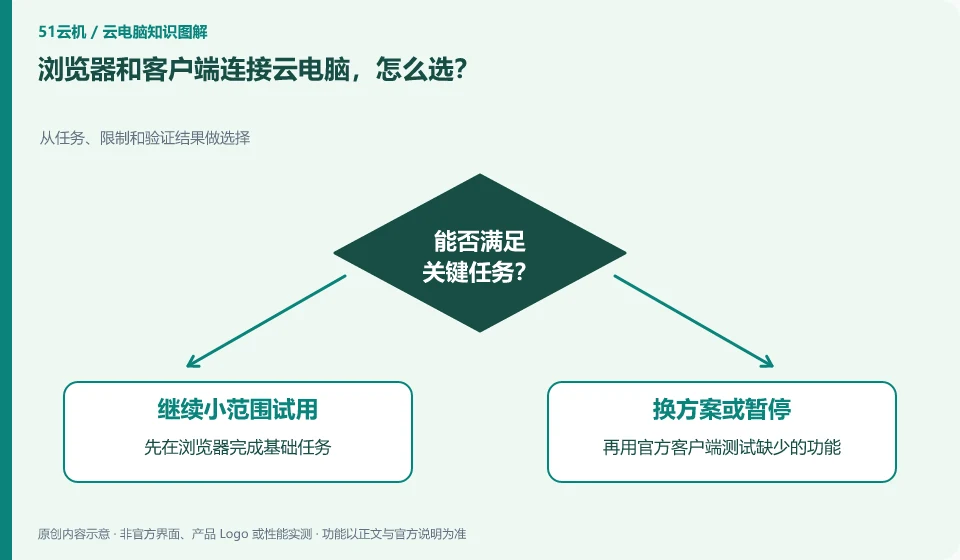
Browsers are suitable for quick attempts and temporary access, and dedicated clients may provide different shortcut keys, peripherals and display capabilities. The specific difference depends on the compatibility instructions of the same product.
Understand the essentials
Both portals may be connected to the same desktop, but the local permissions and redirectable devices are not necessarily the same. Convenient entrance does not mean complete functionality.
A practical example
Hypothetical example: when a printer or multiple monitors are needed, it should be verified in practice; for temporary viewing of a document, a browser may be sufficient.
What to check or try
- Complete the basic tasks in the browser first.
- Then use the official client to test the missing functions.
- Record versions and do not install connection tools from unknown sources.
Write a short list of necessary functions: whether to use the camera, whether to print, whether to dual-screen, whether to transfer files. Check the actual test results in the two entrances respectively. If there is only one necessary function missing, you can choose accordingly. There is no need to install multiple tools but not be able to explain why.
An easy-to-miss detail
You should not repeatedly relax all permissions for a peripheral function and enable only those items that are truly required for the task.
Continue reading
- Do higher cloud PC specifications always mean a smoother experience?
- Can you access a cloud PC from a phone?
Back to Cloud PCs: getting started
Notes and further reading
Azure Virtual Desktop overview;Windows 365 Enterprise。
This introductory guide was prepared by 51Yunji from public information with AI-assisted drafting. Examples are hypothetical, not hands-on product tests or promises of results. Follow the current product, version and official instructions for specific features and procedures. Compiled on October 26, 2026.