
First confirm that the camera is functioning properly locally and is not occupied by other programs, and then check whether the client and remote applications support the corresponding path.
Understand the essentials
Physical devices, permissions, and application selections may all cause a black screen. You cannot just look at the remote camera icon.
A practical example
Hypothetical example: the local camera application is normal, but the cloud conference screen is black, indicating that the redirection and conference settings should be checked.
What to check or try
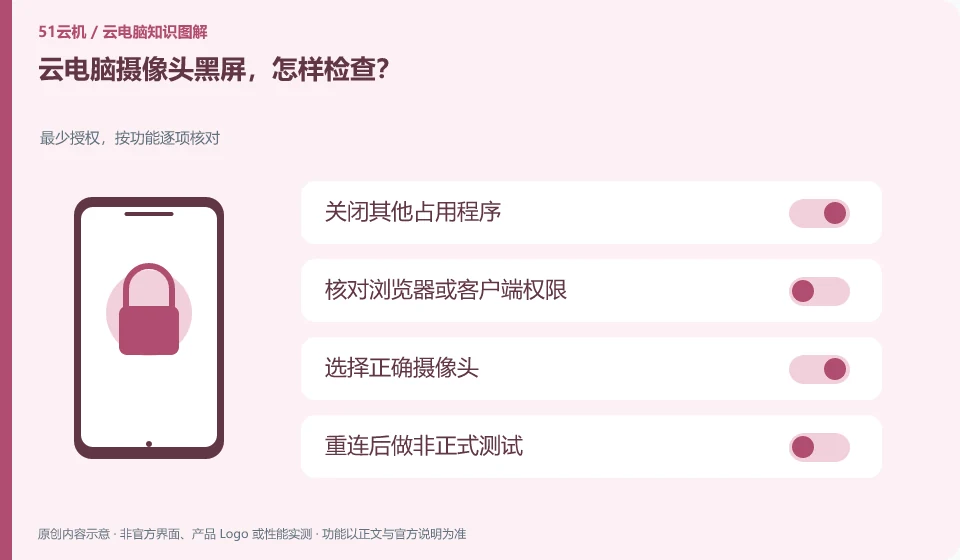
- Close other occupied programs.
- Check browser or client permissions.
- Choose the right camera.
- Do an informal test after reconnecting.
After the permissions are modified, some programs need to be reopened or the device reselected. Please follow the official instructions. Also confirm physical camera blocking and local switches. Starting with a simple viewfinding test before entering meetings or other business processes can reduce unnecessary account operations.
An easy-to-miss detail
When enterprise policy prohibits redirection, you should contact the administrator and do not bypass restrictions on your own.
Continue reading
- What to do when a cloud PC microphone does not work
- Cloud PC cannot detect a USB drive: what to check
Back to Cloud PCs: troubleshooting
Notes and further reading
Troubleshooting AVD connection quality;WorkSpaces Personal network requirements。
This introductory guide was prepared by 51Yunji from public information with AI-assisted drafting. Examples are hypothetical, not hands-on product tests or promises of results. Follow the current product, version and official instructions for specific features and procedures. Compiled on October 26, 2026.