
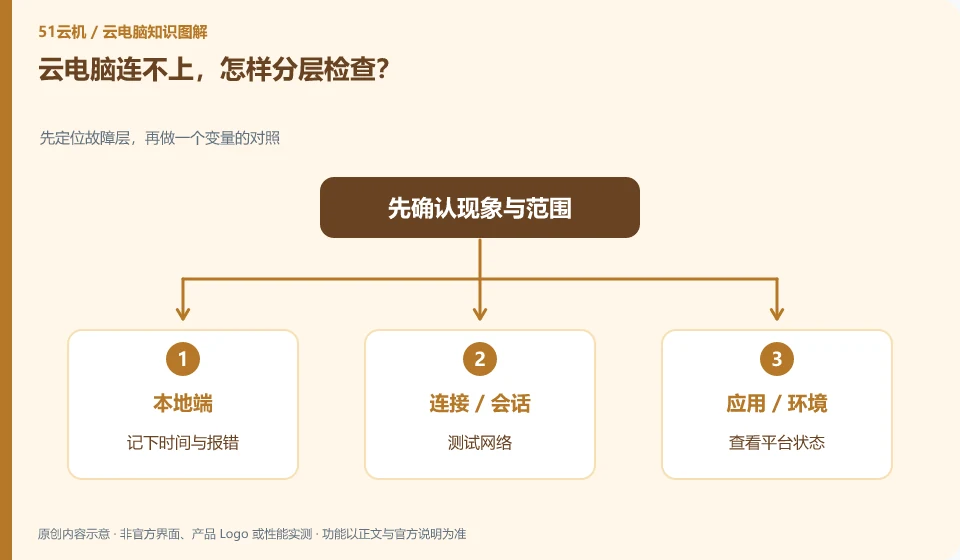
Checking by local network, service portal, account, instance status and client order is easier to locate than repeated reinstallation. Save the error message first.
Understand the essentials
Any abnormality in any of these layers will appear as an inability to enter the desktop, but the corresponding handlers and methods are different.
A practical example
Hypothetical example: Ordinary web pages cannot be opened, so the local network should be dealt with first; if only one desktop fails, then the instance and permissions should be looked at.
What to check or try
- Note the time and error report.
- Test network.
- View platform status.
- Check account and instance.
- Finally, compare supported connection entries.
When troubleshooting, write down the results after each step, for example, "Ordinary web pages are normal, the platform can be logged in, and only a certain instance failed." These records are enough to narrow down the problem significantly. If you try another entrance, keep the original account and instance unchanged to avoid mistaking the changes caused by changing the environment at the same time as repairs.
An easy-to-miss detail
Do not reset the instance or turn off security settings without first understanding the cause.
Continue reading
- What to provide when contacting cloud PC support
- Cloud PC has a black screen but the pointer moves: what to check
Back to Cloud PCs: troubleshooting
Notes and further reading
Troubleshooting AVD connection quality;WorkSpaces Personal network requirements。
This introductory guide was prepared by 51Yunji from public information with AI-assisted drafting. Examples are hypothetical, not hands-on product tests or promises of results. Follow the current product, version and official instructions for specific features and procedures. Compiled on October 26, 2026.