
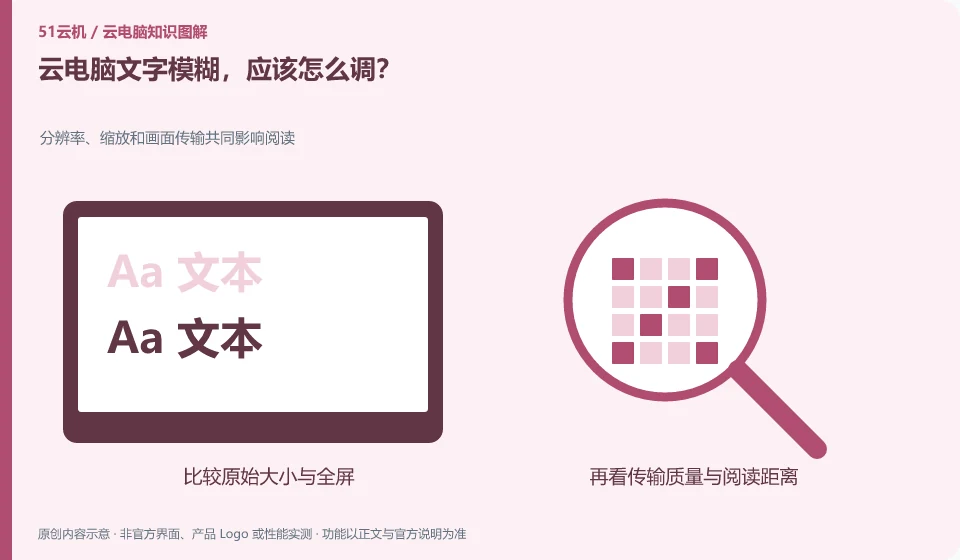
Check the remote resolution, local scaling, and client display settings first. Screen compression and window stretching may also affect text.
Understand the essentials
When the remote output size is inconsistent with the local display size, enlarging the picture may only be enlarging the pixels.
A practical example
Hypothetical example: the desktop is clear in a small window, but becomes blurry after the high-resolution screen is filled. You should observe whether the resolution changes accordingly.
What to check or try
- Compare original size to full screen.
- View supported resolutions.
- Review the text after adjusting a setting.
- Record whether the network triggers image quality degradation.
When comparing text, you can fix the same paragraph and window size to avoid mistaking font size changes for clarity improvements. If the input coordinates or layout are incorrect after adjustment, restore the original settings and then troubleshoot. Record one change at a time, only to be able to roll back when the effect deteriorates.
An easy-to-miss detail
Don't just rely on increasing the remote CPU to improve text clarity, and don't attribute all blurring to a broken screen.
Continue reading
Back to Cloud PCs: troubleshooting
Notes and further reading
Troubleshooting AVD connection quality;WorkSpaces Personal network requirements。
This introductory guide was prepared by 51Yunji from public information with AI-assisted drafting. Examples are hypothetical, not hands-on product tests or promises of results. Follow the current product, version and official instructions for specific features and procedures. Compiled on October 26, 2026.