
First determine whether the remote desktop is not rendering, the application is blocking the screen, or the connection display is abnormal. Don't immediately assume that the file is lost.
Understand the essentials
The fact that the mouse is active only shows that part of the input display link is still there, but it does not prove that the entire session is normal.
A practical example
Hypothetical example: the window is black but the same session is restored after reconnecting. This may be related to the display process rather than the system being cleared.
What to check or try
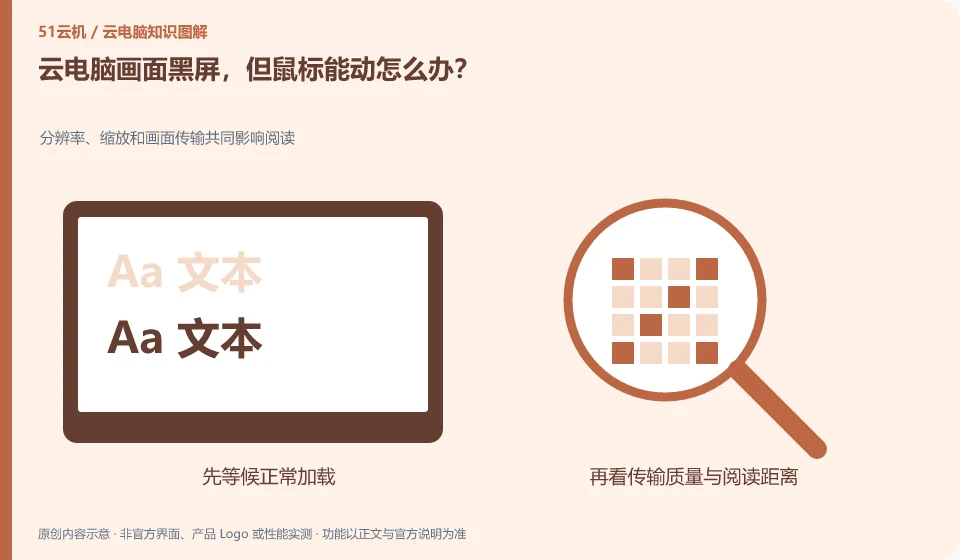
- Wait for normal loading first.
- Attempts client-provided reconnection.
- Record whether only a certain application has a black screen.
- Keep screenshots and versions.
If you can safely return to the desktop or switch windows, you can see if only one program is experiencing problems. If even the desktop is black, check the connection and session first. Unsaved work should not be forcibly terminated. When contacting support, you should clearly indicate whether there is any unsaved content.
An easy-to-miss detail
If the black screen persists, have the session checked by support personnel to avoid continuous force restarts of unsaved work.
Continue reading
- Cloud PC won't connect: troubleshoot each part of the connection
- Cloud PC is slow: check the network or the specifications first?
Back to Cloud PCs: troubleshooting
Notes and further reading
Troubleshooting AVD connection quality;WorkSpaces Personal network requirements。
This introductory guide was prepared by 51Yunji from public information with AI-assisted drafting. Examples are hypothetical, not hands-on product tests or promises of results. Follow the current product, version and official instructions for specific features and procedures. Compiled on October 26, 2026.