
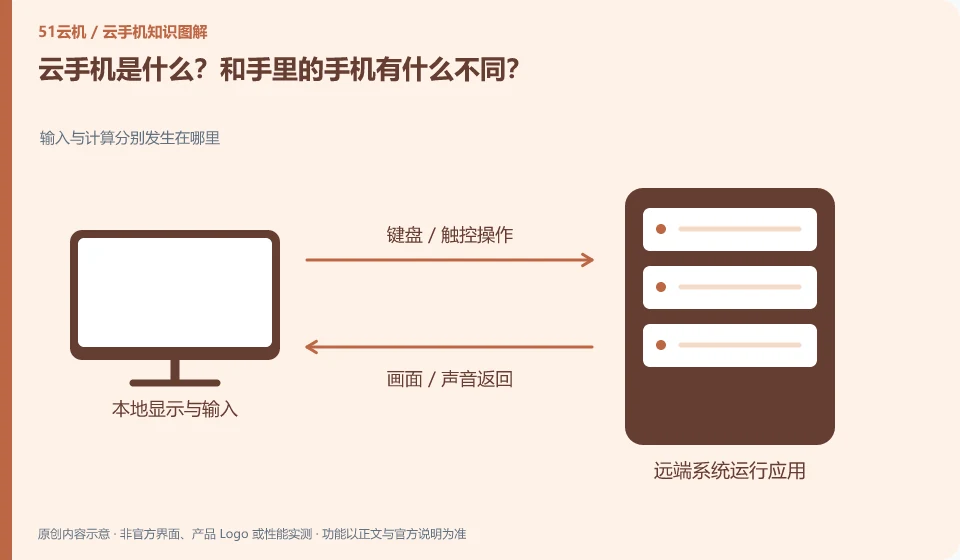
The cloud phone mentioned here mainly runs in the remote Android environment. You view the screen and perform operations through the client or browser, and the application mainly runs remotely.
Understand the essentials
The local mobile phone is the access portal and does not mean that the remote system has the same hardware, system authentication or communication capabilities.
A practical example
Hypothetical example: When you use a tablet to view the Cloud Phone interface, the applications in the interface may not necessarily be installed on the tablet.
What to check or try
- Confirm the remote Android version.
- Learn how to access.
- Complete opening, typing, and saving with the test app.
- Read the expiration rules.
When understanding, you can split it into three parts: "remote Android, connection tool, and local screen". Where the application is installed and where the files are saved, check these three parts. Once you establish this understanding, many download, permission, and exit issues are easier to explain.
An easy-to-miss detail
Don’t understand the word “mobile phone” to mean that you can insert a card, make calls, or send and receive text messages.
Continue reading
- Opening a cloud phone for the first time: initial checks
- Is a cloud phone a real phone controlled remotely?
Back to Cloud phones: getting started
Notes and further reading
Wuying Cloud Phone documentation;Tencent Cloud Phone quick start。
This introductory guide was prepared by 51Yunji from public information with AI-assisted drafting. Examples are hypothetical, not hands-on product tests or promises of results. Follow the current product, version and official instructions for specific features and procedures. Compiled on October 26, 2026.