
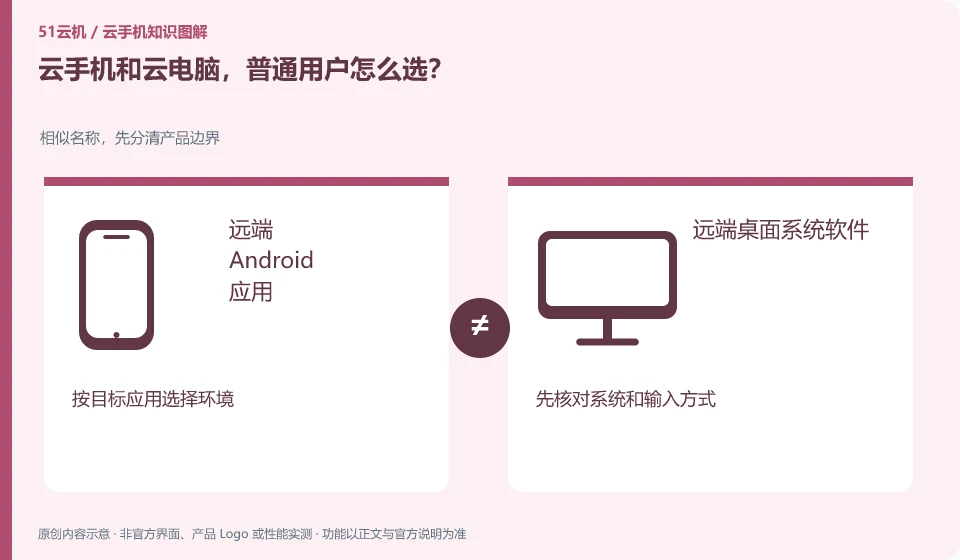
First check whether you want to run an Android application or desktop software. What kind of application environment is needed is more important than whether the screen looks like a mobile phone or a computer.
Understand the essentials
The mobile phone can access cloud PC, and the computer can also access cloud phone. Accessing the device and the remote system are not the same thing.
A practical example
Hypothetical example: If you use a laptop to operate a remote Android application, it is still a cloud phone, rather than turning it into a Windows software.
What to check or try
- Write down required applications.
- Check support systems.
- Test files and input.
- Consider resources after checking key features.
You can first list the required software and mark the systems it requires one by one. If your only need is to access Windows software on your mobile phone, you should study the mobile portal of cloud PC; if you need to operate Android applications on your computer, you should study cloud phone, and the direction will be clear.
An easy-to-miss detail
Don't choose cloud phone by default just because the local device is a mobile phone.
Continue reading
- Cloud phones and Android emulators: what is the difference?
- Do you need a powerful local phone to use a cloud phone?
Back to Cloud phones: getting started
Notes and further reading
Wuying Cloud Phone documentation;Tencent Cloud Phone quick start。
This introductory guide was prepared by 51Yunji from public information with AI-assisted drafting. Examples are hypothetical, not hands-on product tests or promises of results. Follow the current product, version and official instructions for specific features and procedures. Compiled on October 26, 2026.