
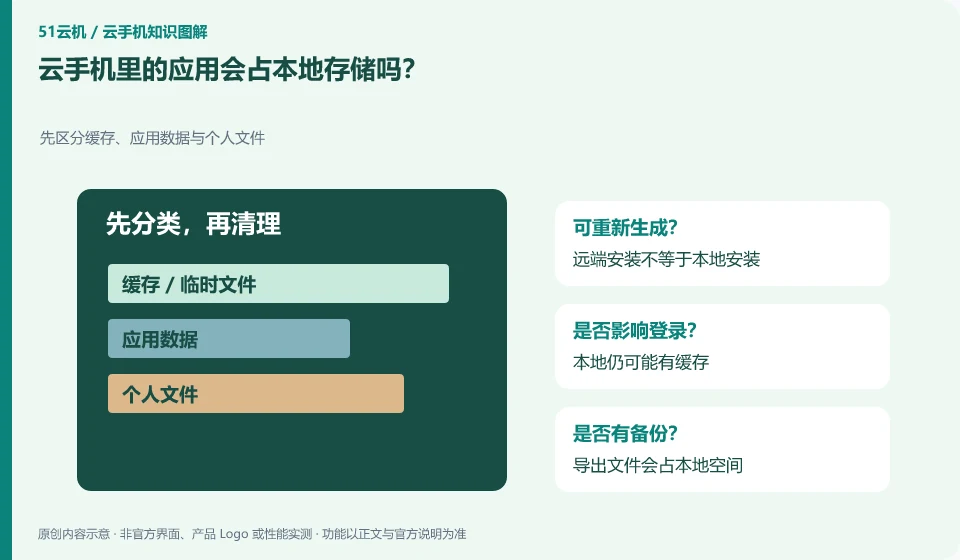
App installations mainly occupy remote space, but local clients, caches, screenshots, and downloads may still occupy local storage. Look at both sides separately.
Understand the essentials
"Running in the cloud" does not mean completely zero local usage, especially when saving media or transferring files.
A practical example
Hypothetical example: if a large application is installed on the remote system, the local space may not change much; continuously downloading screenshots will increase the local space occupied.
What to check or try
- View remote and local storage separately.
- Confirm cache type.
- Retrieve important files first and then clean up.
- Use the method supported by the system.
Check the file ownership before cleaning. Deleting the remote installation package will not free up all local space, and clearing the local cache does not mean that the remote data will disappear. Checking both sides separately can avoid clearing the wrong position but does not solve the real space problem.
An easy-to-miss detail
Don’t accidentally delete account recovery materials or unique export files to save space.
Continue reading
Back to Cloud phones: getting started
Notes and further reading
Android app storage overview;Android app permissions overview。
This introductory guide was prepared by 51Yunji from public information with AI-assisted drafting. Examples are hypothetical, not hands-on product tests or promises of results. Follow the current product, version and official instructions for specific features and procedures. Compiled on October 26, 2026.