
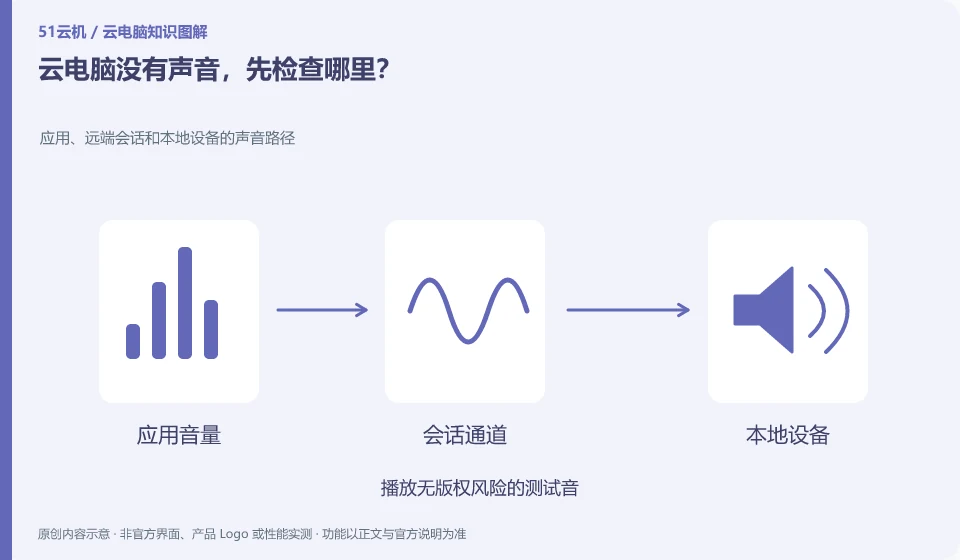
First verify that the remote application is producing sound, then check audio redirection, local output devices, and volume. Both ends may be muted.
Understand the essentials
The local headset, browser tab, and remote system each have sound switches, and if any of them are turned off, the sound will not be heard.
A practical example
Hypothetical example: After switching headphones, the sound is still sent to the original device. It may be that the output selection has not changed accordingly.
What to check or try
- Play test sounds without copyright risk.
- Look at the volume layer by layer.
- Confirm that the client allows audio.
- Change to a local output device for comparison.
Draw the audio link as three steps: "Remote Application→Connection Tool→Local Output", and confirm each step. After replacing the headset, see if the system still selects the old device. After getting the sound, you should also restore the appropriate volume to avoid sudden switching of outputs causing excessive noise.
An easy-to-miss detail
Don't uninstall the remote sound card driver at the beginning, rule out simple settings first.
Continue reading
- What to do when copy and paste stops working on a cloud PC
- What to do when a cloud PC microphone does not work
Back to Cloud PCs: troubleshooting
Notes and further reading
Troubleshooting AVD connection quality;WorkSpaces Personal network requirements。
This introductory guide was prepared by 51Yunji from public information with AI-assisted drafting. Examples are hypothetical, not hands-on product tests or promises of results. Follow the current product, version and official instructions for specific features and procedures. Compiled on October 26, 2026.