
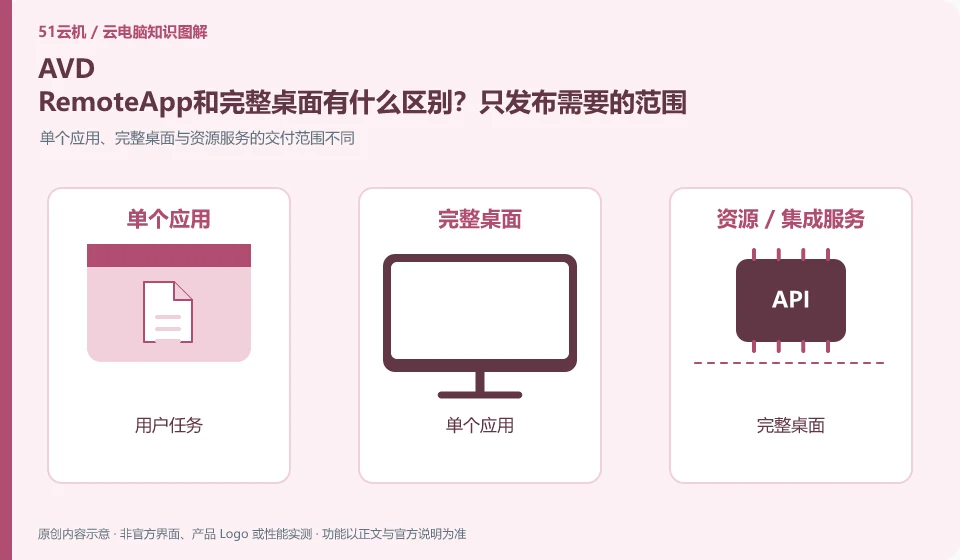
RemoteApp focuses on delivering applications and delivers the entire work environment with a complete desktop. The selection should come from the business process, and printing, file selection, or cross-application calls cannot be ignored just because the application window is simpler.
Who this is for:General readers and small teams who are working on Microsoft Azure Virtual Desktop and need to solve the specific problem in the title. Data verification date: 2026-10-26.
First, identify the product line
Azure Virtual Desktop can deliver a complete desktop or RemoteApp, and administrators need to plan host pools, application groups, users, and images. It belongs to the same Microsoft desktop system as Windows 365, but has different resource organization and operation and maintenance responsibilities, so it is suitable for design based on workload.
You don’t need to go to the full desktop first when you only need an app
If you only use one business program, verify it with RemoteApp first; if you need multiple programs and project dependencies, continue to evaluate the desktop method. Both should check application licensing and multi-user support, especially old software that cannot be judged for production use only based on successful startup.
Application delivery solves different problems than full desktop delivery. The former allows users to enter specific business applications, while the latter provides an operational desktop environment. If employees only use one fixed system, application portals may be easier to manage; if multiple programs, file dependencies, and complex workflows are required, a complete desktop may make it easier to restore original usage habits. Before selecting, draw the data flow between applications.
When testing application delivery, check file dialog boxes, printing, input methods, browser jumps, and linkage with other programs. Some old applications write configurations in the personal directory or require administrator rights. Simply "the window displays normally" is not enough. The release environment also involves software licensing, server compatibility and concurrent authorization, which should be confirmed by the application vendor instead of using bootable instead of legally available.
Check each requirement for your task
- List the applications the user actually wants to run and their interdependencies.
- Compare a single application release versus a full desktop delivery and choose the smallest feasible scope.
- Verify opening files, printing, and cross-application operations, and check permissions.
Installing software and completing a workflow are different tests
Software compatibility includes the operating system, processor architecture, permissions, drivers, licensing and data dependencies. A successful installation only confirms that the installation step worked. You still need to test launching, signing in, reading and writing files, and producing the required output. For domestic operating systems, older programs or software requiring special hardware, start with the vendor's support matrix rather than someone else's screenshot.
Where the conclusion applies and what to do next
Do not copy the old tutorial of the classic version of Azure Virtual Desktop; Microsoft's overview document has given a reminder to retire the classic version, and you should check the current resource model.
This article is based on public information. We have not purchased or tested the product. The scenarios describe ways to verify suitability, not customer case studies. Features and terms depend on the current official documentation for the relevant version.
Official sources and further reading
- Azure Virtual Desktop overview: Official description of complete desktop, RemoteApp, personal and pooled resources and classic version retirement information.
- Azure Virtual Desktop prerequisites: Identity, platform, and deployment prerequisites reference.
- Azure Virtual Desktop Documentation Entry: Current documentation and quick start portal, without borrowing steps from other desktop products.
Read more:Cloud PC knowledge hub · Find an article for your question · Microsoft Azure Virtual Desktop product line identification
Related questions to explore
- Azure Virtual Desktop host pools, application groups and workspaces explained
- AVD personal versus pooled desktops: does the environment need to persist?
- Can you still use classic AVD tutorials? Check retirement and resource models
Back to the brand and product knowledge directory · Browse cloud PC topics