
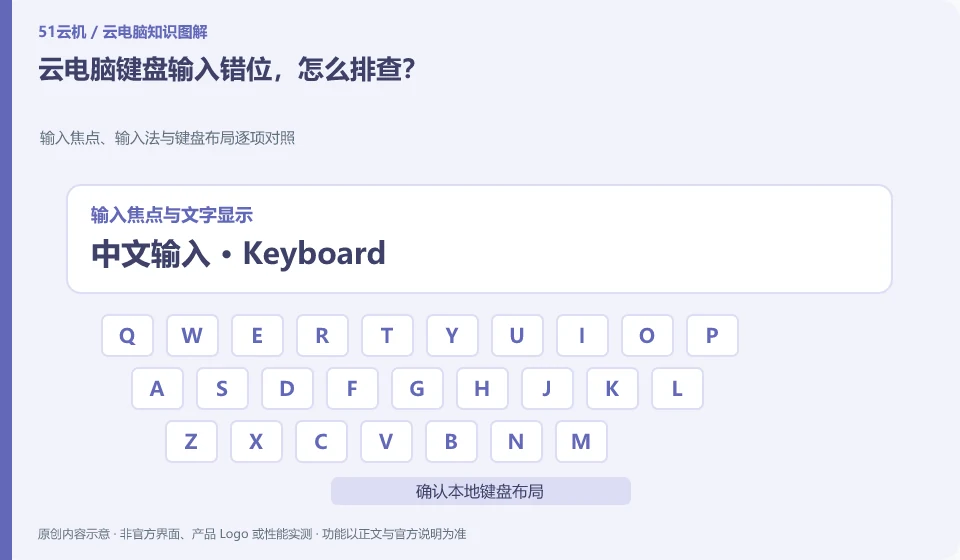
First confirm the local and remote keyboard layout, language and focus. A remote connection may send keystrokes to a different end than you expect.
Understand the essentials
Input method switches, shortcut keys and application focus are superimposed, which is prone to symbol errors or language switching abnormalities.
A practical example
Hypothetical example: I can type a certain symbol locally, but it's different on the remote system. It may be a layout rather than keyboard hardware failure.
What to check or try
- First click into the remote input box.
- Compare local and remote languages.
- Test key by key with simple text.
- Check the client keyboard instructions.
When troubleshooting key combinations, you can first trigger the same action from the application menu. The menu is normal but the shortcut keys are not working, suggesting that the keys may have been intercepted by the other end. Using this comparison method, it is easier to retain clear clues than continuously modifying multiple input method settings.
An easy-to-miss detail
Don’t go through trial and error in the official password box, confirm your entry first with non-sensitive text.
Continue reading
- Cloud PC mouse lag: how to identify the cause
- What to do when copy and paste stops working on a cloud PC
Back to Cloud PCs: troubleshooting
Notes and further reading
Troubleshooting AVD connection quality;WorkSpaces Personal network requirements。
This introductory guide was prepared by 51Yunji from public information with AI-assisted drafting. Examples are hypothetical, not hands-on product tests or promises of results. Follow the current product, version and official instructions for specific features and procedures. Compiled on October 26, 2026.