
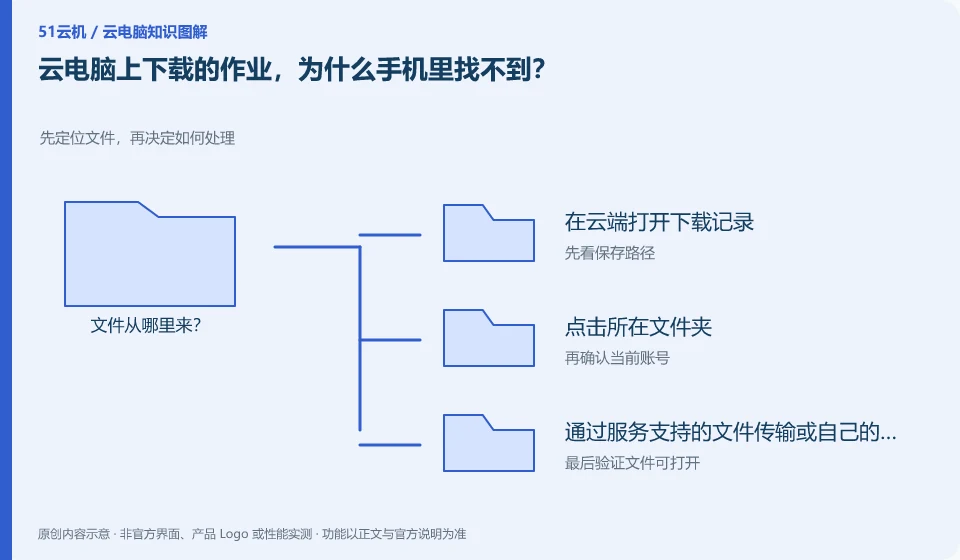
The download may occur in the cloud PC, and the file is not automatically transferred to the mobile phone. You need to confirm which side the browser is actually running on.
Understand the essentials
The "Downloads" directory in the remote desktop belongs to the remote system; the download directory of the mobile browser belongs to the mobile phone.
A practical example
Hypothetical example: After downloading a PDF in the cloud, go back to the mobile file app to search. If it can't be found, it doesn't necessarily mean that the download failed.
What to check or try
- Open download history in the cloud.
- Click on the folder.
- Retrieve via service-supported file transfer or your own sync space.
- Confirm on your phone again.
After finding the file, you can do a reverse verify before submitting it: open it from the location where you are going to submit it, rather than opening it from the editor's most recent file entry. This confirms that you are submitting an actual file and not a temporary location in the cloud or a link that is only available to your current account.
An easy-to-miss detail
After the transfer is successful, open the verification first and do not delete the only remote copy immediately.
Continue reading
Back to Cloud PCs: learning and home use
Notes and further reading
Cloud PC access methods and client prerequisites;Azure Virtual Desktop overview。
This introductory guide was prepared by 51Yunji from public information with AI-assisted drafting. Examples are hypothetical, not hands-on product tests or promises of results. Follow the current product, version and official instructions for specific features and procedures. Compiled on October 26, 2026.