
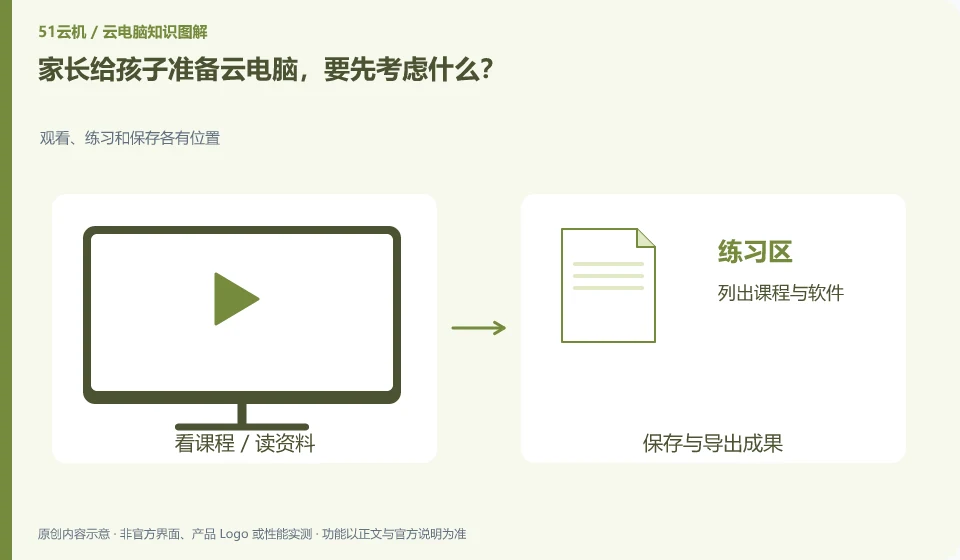
First determine your child’s learning tasks, available networks and usage habits, and then look at the equipment. The cloud does not automatically solve content selection, time management or parental presence issues.
Understand the essentials
Learning accounts, system accounts and cloud service accounts may be separated. Parents need to know who can manage them and how to retrieve and log out.
A practical example
Hypothetical example: when the child just watches the course, the existing tablet may be enough; when the child needs to practice desktop software, then evaluate the remote desktop.
What to check or try
- List courses and software.
- Accompany you to complete your first login.
- Agree on the file save location.
- Check payment and renewal permissions.
Parents can complete a real-life exercise with their children and ask them to tell where they saved it and how to get help if they encounter problems. This not only checks the equipment, but also establishes basic usage habits. Cost, retrieval and resource management are the responsibility of an appropriate adult.
An easy-to-miss detail
Don't leave your children alone to handle payments and remote assistance, and don't think of cloud PC as a natural parental control tool.
Continue reading
Back to Cloud PCs: learning and home use
Notes and further reading
Cloud PC access methods and client prerequisites;Azure Virtual Desktop overview。
This introductory guide was prepared by 51Yunji from public information with AI-assisted drafting. Examples are hypothetical, not hands-on product tests or promises of results. Follow the current product, version and official instructions for specific features and procedures. Compiled on October 26, 2026.