
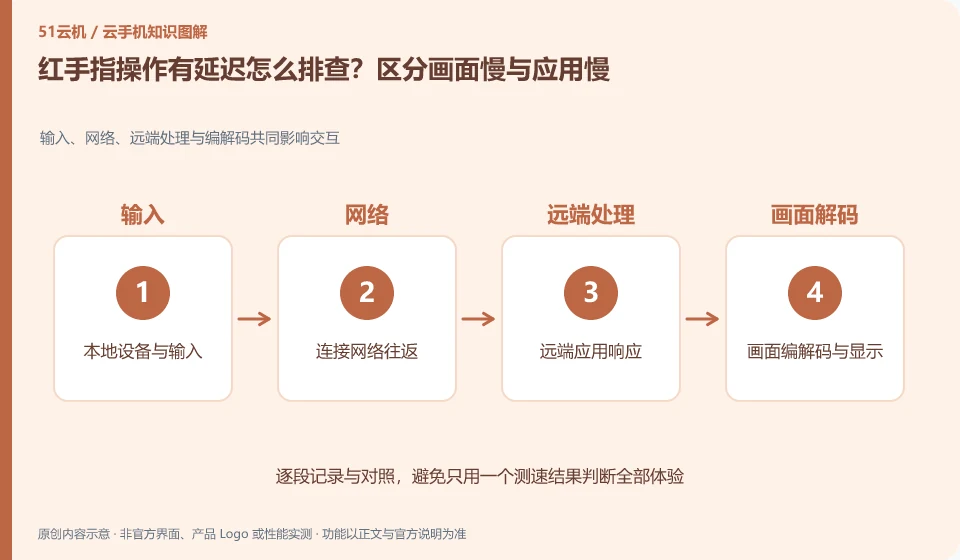
Regarding Redfinger, the key to this problem is: if you don’t see changes until a long time after clicking, it may be a problem with the screen transmission or local network; if the screen is smooth but the application keeps loading, it may be a performance problem with the application service, cloud network, or cloud machine. Layer first so that every lag will not be attributed to the configuration.
Known information about Redfinger and the key points of this verification
Redfinger provides cloud phone remote control and application hosting services. The official help area explains application upload, restart, factory reset and expiration recycling respectively.
Test low-load pages such as system settings first, and then compare target applications; different grades of the same brand cannot be summarized by one delay conclusion.
The evidence boundary of this article is: different clients and system packages may be suitable for different functions; the performance promotion on the official website should not be regarded as actual measurement results.
Consider a specific scenario
Suppose you are going to see the cloud screen change after a long time after clicking Settings. This is a verification plan, not our experience using this product. First of all, "the same device has comparative results under different networks and image quality" should be used as the completion standard for this time. The original data should be saved before the test, and the first attempt should not be placed directly on important accounts and unique file copies.
What is most easily overlooked in this scenario is that only upgrading the configuration without checking the access link may be completely ineffective. Therefore, it is necessary to separate the status that can be seen on the interface from the results that really need to be delivered. Being able to reproduce, explain and withdraw is more valuable than getting only one success notification.
Check in this order
- Record the three phenomena of click response, screen update and application loading respectively.
- Keeping the equipment unchanged, compare the two local networks and record the test period.
- Retest after reducing the image quality. If the problem is still abnormal, please submit the device number and phenomenon for support.
How to submit records to Redfinger’s support channel
When submitting a problem, first write "How to troubleshoot the delay in Redfinger operation? Distinguish between slow screen and slow application", and then attach the device number, selected client and system version, failure steps and current time. The key point of verify in the brand information is to "test low-load pages such as system settings first, and then compare the target application; different grades of the same brand cannot be summarized with one delayed conclusion." Therefore, do not just send a screenshot of the homepage, nor do you need to put the complete password, verification code or private key into the problem description. When it comes to order or business qualifications, you should contact support from the official entrance where this product can be verified.
Understand what this question covers
The same device, the same application, and the same time period only change one condition so that the results can be easily compared. You can switch the local network first, then reduce the image quality, and finally check the cloud application status. Do not change the network, device and installation package at the same time, otherwise it will be difficult to know the reason even if it gets better.
A reusable verification log
You can copy the table below into your notes. Record the device ID, verification date and current version. It helps identify which step failed and lets you repeat the same checks after changing clients or services.
| Checkpoint | What counts as a pass | What to do if it fails |
|---|---|---|
| local access | Record network type, time period and client status | First change the conditions and retest, do not attribute all abnormalities to the server |
| remote screen | System page scrolling and clicking can be independently used as controls | The overall screen is slow when checking the stream, not just reinstalling the target application repeatedly |
| Application access | The target service loading and desktop response are recorded separately. | When a single application is abnormal, check its version, status and cloud connection |
| Submit support | The problem period, device number and comparison results are all available | Do not provide real passwords and complete identity materials, save reproducible evidence first |
Sources and scope
- Redfinger cloud phone official website
- Redfinger Product Answers
- Redfinger function operation
- Introduction to RedfingerAI Assistant
Sources checked on October 26, 2026. This article combines AI-assisted research of public information with independent analysis and verification suggestions; we have not conducted a hands-on test of this product. Features and costs depend on the current official documentation and your order.
Continue reading:Cloud phone basics · Cloud phone troubleshooting guide · Brand reference directory。
Related questions to explore
- What is Redfinger? Where it runs, how to access it and who it serves
- Installing Redfinger's client versus installing APKs in the cloud phone
- Redfinger restart versus factory reset: check your data first
Back to the brand and product knowledge directory · Browse cloud phone topics