
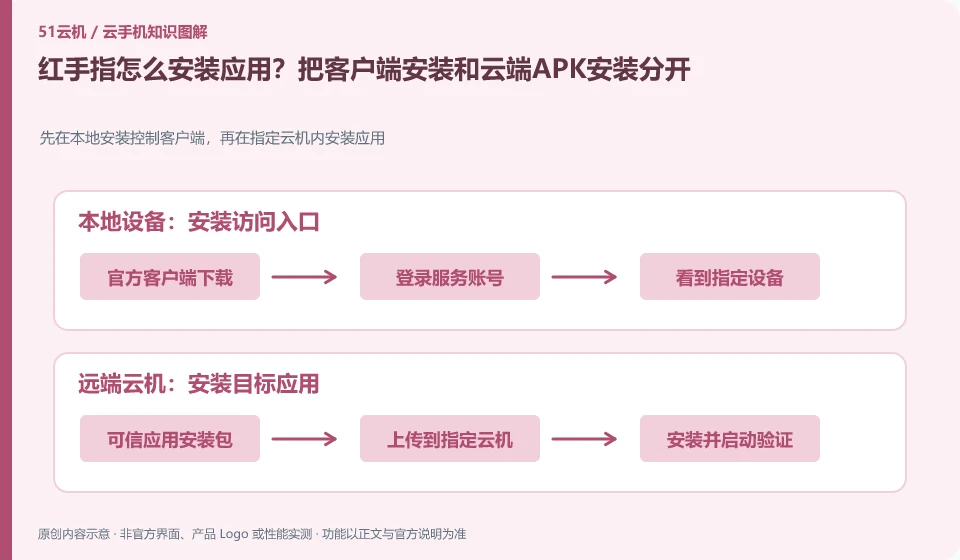
Regarding Redfinger, the key to this issue is: to use an application on a cloud phone, the application must be installed into the cloud Android environment; just download the APK to the local phone, and the cloud will not automatically appear. First confirm whether your client provides uploading or application market, and then choose the path that suits you.
Known information about Redfinger and the key points of this verification
Redfinger provides cloud phone remote control and application hosting services. The official help area explains application upload, restart, factory reset and expiration recycling respectively.
The official upload instructions have different paths between Android and PC. When reading, match the client you are using and do not copy the PC-side behavior to the mobile-side menu.
The evidence boundary of this article is: different clients and system packages may be suitable for different functions; the performance promotion on the official website should not be regarded as actual measurement results.
How this issue applies to this product
Redfinger function operation help puts application upload instructions in the specific client. The local file sources on Android and PC are different, so "Downloaded APK on mobile phone" and "Upload completed on computer" cannot be regarded as the same step. It is best to first clarify which type of control device it is, and then follow the corresponding official instructions to complete the path of the file into the cloud machine to avoid copying the menu at the other end.
When troubleshooting, the results are divided into upload, installation and first run. If the upload fails, save the file size and transfer prompt first; if the cloud refuses to install, you need to check the package format, system and existing version; if it cannot be opened after installation, the error of the target application should be recorded instead of uploading the same file over and over again. The course exercise APK can be verified first in a test environment without sensitive content. After confirming the file entry and uninstall method, you can then decide whether to migrate it into daily applications.
If the application was originally installed on the cloud machine, you should also confirm how the old data is saved before overwriting the installation. Changing to a higher version of the installation package may not necessarily retain all local status; export important drafts within the application first, and then decide whether to continue according to the current prompts. The upload operation cannot be regarded as naturally lossless.
Understand what this question covers
Installation failure may also be related to file corruption, package format, Android version or CPU architecture. Being able to upload means that the file has arrived, being able to display the installation icon means that the installation is complete, and being able to log in and complete the task after opening means that the adaptation is successful. The results of these layers should be verified separately.
Check in this order
- Obtain the installation package from the application developer or official store, and check the file name and version.
- First test the cloud machine installation on a single machine and record the installation prompts instead of continuously reinstalling.
- Open the application to complete login and a core operation, and then decide whether to retain the environment.
Sources and scope
- Redfinger cloud phone official website
- Redfinger Product Answers
- Redfinger function operation
- Introduction to RedfingerAI Assistant
Sources checked on October 26, 2026. This article combines AI-assisted research of public information with independent analysis and verification suggestions; we have not conducted a hands-on test of this product. Features and costs depend on the current official documentation and your order.
Continue reading:Cloud phone basics · Cloud phone troubleshooting guide · Brand reference directory。
Related questions to explore
- What is Redfinger? Where it runs, how to access it and who it serves
- Redfinger restart versus factory reset: check your data first
- Redfinger subscription expiry: plan renewal and file export separately
Back to the brand and product knowledge directory · Browse cloud phone topics