
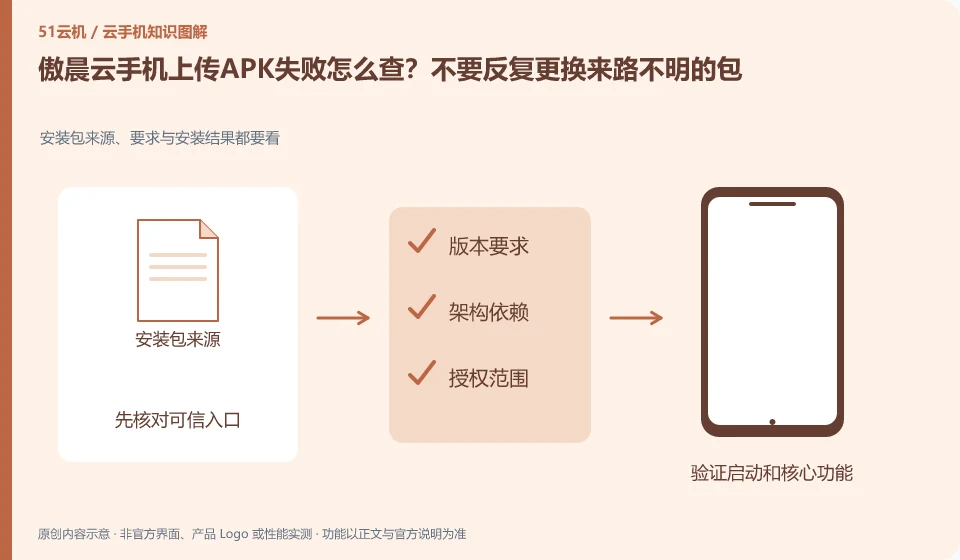
Regarding Aochen cloud phone, the key to this problem is: first distinguish between files that are not uploaded, files that are not installed after being uploaded, and files that cannot be started after being installed. The three types of failures require different evidence; clicking upload repeatedly may not only occupy space again, but also cover up the earliest error message.
Known information about Aochen cloud phone and the key points of this verification
Aochen cloud phone official website provides Android, computer and web page operation portals. The official question page explains that the cloud runs independently and reminds you of data processing if your subscription has not been renewed or the device has been replaced.
The problem directory mentions uploading your own application. This article provides a staged troubleshooting method. The specific buttons are subject to the visible operations of the current client.
The evidence boundary of this article is: the system version and package are subject to the actual console; the old version range on the website does not represent all current devices.
Understand what this question covers
Package extension, completeness, system requirements and available space are all worth checking. Do not download unknown modified versions or turn off all permission protection in order to "fix compatibility". If the source is legitimate and the requirements are met, if it still fails, the package version and device system should be recorded for the supporter or application developer to judge.
Consider a specific scenario
Assume that the APK you prepared shows that it has been uploaded but the application icon does not appear on the desktop. This is a verification plan, not our experience using this product. First of all, "distinguish between file upload completion, system installation and application startup" should be regarded as the completion standard. The original data should be saved before testing, and the first attempt should not be placed directly on important accounts and unique file copies.
The most easily overlooked thing in this scenario is that repeatedly changing packages from unknown sources will only increase the investigation variables. Therefore, it is necessary to separate the status that can be seen on the interface from the results that really need to be delivered. Being able to reproduce, explain and withdraw is more valuable than getting only one success notification.
Check in this order
- Confirm that the file comes from formal sources and retain the original version information.
- Check the transfer progress, remaining space and installation prompt to which stage it belongs.
- Compare with a small test package from the same source and submit reproducible records.
A reusable verification log
You can copy the table below into your notes. Record the device ID, verification date and current version. It helps identify which step failed and lets you repeat the same checks after changing clients or services.
| Checkpoint | What counts as a pass | What to do if it fails |
|---|---|---|
| input file | Source, version, type and target use can correspond | If the file is unknown, verify the original source first and do not replace it with an unknown modification package. |
| intermediate process | Upload and download have progress or completion status respectively | When interrupted, check the completed part first to avoid repeatedly transmitting the same batch of content. |
| Target location | See the file on the correct device and in the correct directory | Check the direction and filter when it cannot be found, and do not rush to delete the source file and try again. |
| Usage results | The target application can read, and the quantity is consistent with the version | If the reading fails, check the format and permissions first, and keep the original until the migration is completed. |
How to submit records to Aochen cloud phone support channel
When submitting a question, first state "How to check if Aochen cloud phone fails to upload APK? Do not repeatedly replace packages from unknown sources", and then attach the device number, selected client and system version, failure steps and the current time. The key point of verify in the brand information is "The problem directory mentions uploading your own application. This article provides a staged troubleshooting method. The specific buttons are based on the operations visible on the current client." Therefore, do not just send a screenshot of the homepage, nor do you need to put the complete password, verification code or private key into the problem description. When it comes to order or business qualifications, you should contact support from the official entrance where this product can be verified.
Sources and scope
Sources checked on October 26, 2026. This article combines AI-assisted research of public information with independent analysis and verification suggestions; we have not conducted a hands-on test of this product. Features and costs depend on the current official documentation and your order.
Continue reading:Cloud phone basics · Cloud phone troubleshooting guide · Brand reference directory。
Related questions to explore
- Aochen web access: website, sign-in page and console are different
- Aochen subscription expiry: plan renewal and file export separately
- Choosing an Aochen Cloud Phone Android version for your apps
Back to the brand and product knowledge directory · Browse cloud phone topics