
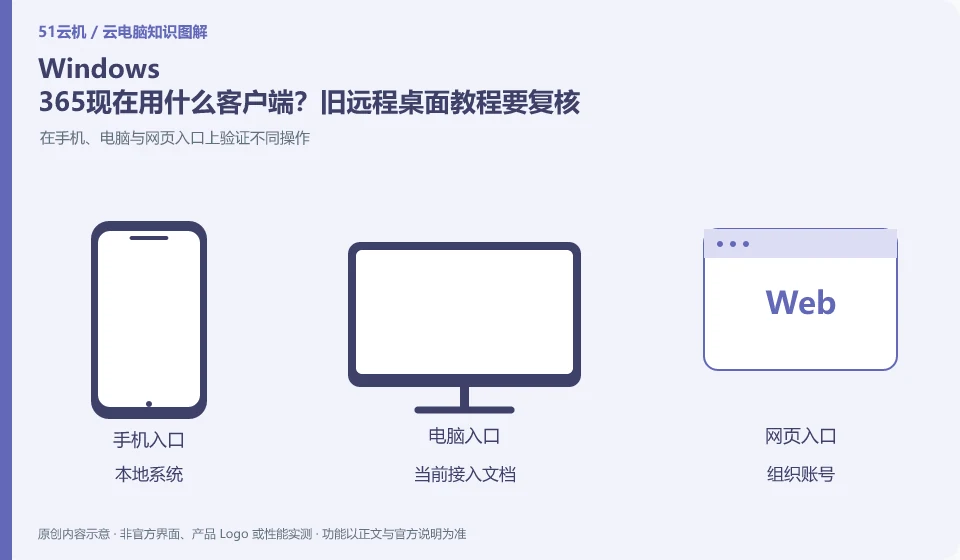
Microsoft's current access documentation recommends Windows App and provides web page access instructions; the old version of Microsoft Remote Desktoptutorial has aging issues. Daily access should use the officially supported method instead of using the system mstsc connection by default.
Who this is for:For general readers and small teams who are working on Microsoft Windows 365 and need to solve the specific problem in the title. Data verification date: 2026-10-26.
First, identify the product line
Microsoft defines Windows 365 as a software service that delivers Cloud PC, and provides different versions such as Business and Enterprise. Its core is to allocate a cloud Windows environment to organizational users, rather than adding an ordinary remote control plug-in to existing physical computers.
Select the access method from the currently accessed document
First confirm the local system and Cloud PC versions, and then select the access method from the official documentation. Test Chinese input, shortcut keys, file channels and audio; if the old tutorial is inconsistent with the current page, record the date and version, and give priority to using the current help instead of repeatedly uninstalling and reinstalling.
First open Microsoft's current access to Cloud PC document, and select the Windows App or web page path according to the local operating system and organizational requirements. There may be time differences in the Microsoft Remote Desktop name, interface and download address in the historical tutorial; do not decide based on the old software icon alone, nor assume that the system's built-in mstsc can replace the identity and resource discovery process required by the service.
Log in with the organizational account assigned to the Cloud PC, first check whether the correct resources can be found, and then test your work actions. Chinese input, shortcut keys, audio and file channels may be different in different terminals or web pages, so the access method must be fixed for the same task. When the unit has device compliance requirements, the administrator's requirements must be met first, and security policies cannot be turned off without permission to connect to the desktop.
Check each requirement for your task
- Check your local system and recommended access methods according to current Microsoft documentation.
- Confirm the Cloud PC list using the account assigned the resources.
- Verify input, audio and files with the same task and record client version.
What to do when the old tutorial conflicts with the new document
First distinguish between name updates, interface changes and support condition changes. Keep the date of the old tutorial, confirm the specific entry with the current document, and report the differences to the administrator. Only upgrading the client may not solve the problem of unallocated licenses or organizational policy restrictions; separately describing access software issues, account issues, and resource preparation issues will be more conducive to positioning.
Where the conclusion applies and what to do next
Windows 365 and Microsoft 365 office software subscriptions, Windows local licenses, and Azure Virtual Desktop need to be purchased and planned separately.
This article is based on public information. We have not purchased or tested the product. The scenarios describe ways to verify suitability, not customer case studies. Features and terms depend on the current official documentation for the relevant version.
Official sources and further reading
- Microsoft: What is Windows 365:Officially defines Cloud PC, version, license and cloud delivery method.
- Microsoft: Access Cloud PC: Official instructions for accessing Windows App and web pages; the old version of Remote Desktoptutorial has timeliness issues.
- Windows 365 spec recommendations: Plan Cloud PC specifications based on workload. CPU numbers cannot be used directly as a guarantee of real performance.
Read more:Cloud PC knowledge hub · Find an article for your question · Microsoft Windows 365 product line identification
Related questions to explore
- Windows 365 versus Microsoft 365: different subscriptions
- Windows 365 Business or Enterprise: start with management requirements
- Signed in to Windows 365 but no Cloud PC? Check licensing and assignment
Back to the brand and product knowledge directory · Browse cloud PC topics