
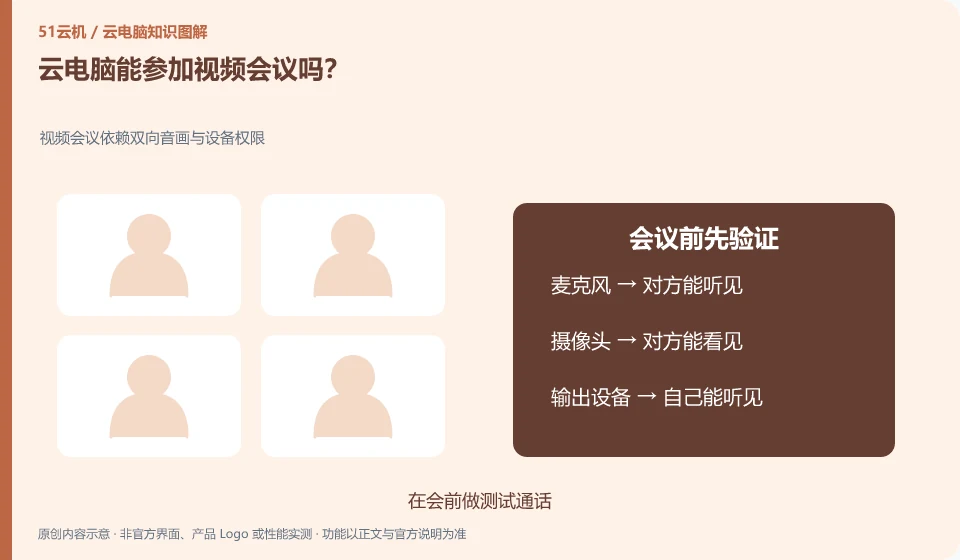
Test the camera, microphone, speakers and conferencing software to see if they work well. Platforms may handle media differently.
Understand the essentials
If the sound is turned on locally and remotely at the same time, it is easy to echo; the audio and video path and the desktop screen path are not necessarily the same.
A practical example
Here's a hypothetical example: You can hear someone else, but they can't hear you. You should first look at the input device selected in the meeting.
What to check or try
- Make test calls before the meeting.
- Confirm the device name.
- Only keep the sound you need.
- Try sharing the window and end sharing.
If you need to share the screen, first check whether the local window or the remote desktop is shared. The two may display different information. Turn off unnecessary notifications before starting and confirm to stop sharing when you're done; these habits are more helpful than searching for buttons during formal meetings.
An easy-to-miss detail
Don’t authorize cameras and microphones for the first time at the beginning of a formal meeting.
Continue reading
- Can you use a drawing tablet with a cloud PC?
- Large files transfer slowly on a cloud PC: what to check
Back to Cloud PCs: work and creativity
Notes and further reading
Azure Virtual Desktop overview;Cloud PC access methods and client prerequisites。
This introductory guide was prepared by 51Yunji from public information with AI-assisted drafting. Examples are hypothetical, not hands-on product tests or promises of results. Follow the current product, version and official instructions for specific features and procedures. Compiled on October 26, 2026.