
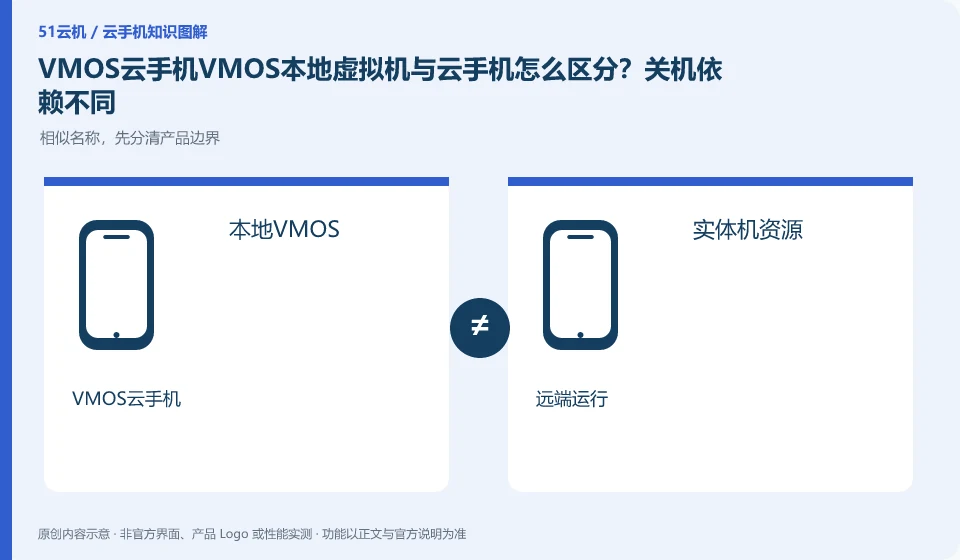
Regarding VMOS cloud phone, the key to this issue is: the local virtual machine runs on your physical device, and the cloud phone environment runs on the remote server. If the task must be continued after the physical shutdown, first confirm that the cloud phone product is indeed used, and not the local Android virtual space with a similar name.
Known information about VMOS Cloud phone and the key points of this verification
VMOS Cloud phone and the VMOS virtual machine running on this machine need to be identified separately. VMOS Cloud phone official website introduces multi-terminal interoperability; PCtutorial separates cloud machine and cloud space management.
The VMOS local product page clearly introduces the native Android virtual space; this article distinguishes it from the cloud product layer by layer, and does not use the same name to infer the running location.
The evidence boundary of this article is: the functions of local VMOS applications, domestic cloud phones, and VMOS Cloud international product pages cannot automatically overlap with each other.
Understand what this question covers
Local products often involve device system compatibility and local permissions, while cloud products also involve lease periods and access to the network. Data migration cannot be completed by copying an icon: you need to check whether the application account, file and environment have officially supported export and import methods.
Consider a specific scenario
Suppose you are going to install VMOS and want the physical phone to shut down and continue running. This is a verification plan, not our experience using this product. First of all, "confirm whether you are installing a local virtual machine or a remote cloud product" as the completion standard for this time. Save the original data before testing, and do not put the first attempt directly on important accounts and unique file copies.
What is most easily overlooked in this scenario is that the local virtual space still relies on the power supply and system resources of the physical machine. Therefore, it is necessary to separate the status that can be seen on the interface from the results that really need to be delivered. Being able to reproduce, explain and withdraw is more valuable than getting only one success notification.
Check in this order
- Check the full name of the product and the operating location in the official website description.
- Inspect local device resource usage and the cloud device list; do not judge by an icon's color.
- Migrate the accounts and files you need to keep separately, then verify the intended task in the new environment.
A reusable verification log
You can copy the table below into your notes. Record the device ID, verification date and current version. It helps identify which step failed and lets you repeat the same checks after changing clients or services.
| Checkpoint | What counts as a pass | What to do if it fails |
|---|---|---|
| operating position | Find a clear description of local or remote in the official description | If you cannot confirm, do not judge based on the appearance of the window. Ask about the specific product line first. |
| Task dependencies | Record whether the machine needs to be turned on all the time and whether it needs network access | When a dependency conflicts with your usage conditions, try another solution. |
| Data ownership | Find out where the installation package, application files and login accounts are saved. | When there is no independent export of important files, solve the problem of export first and then invest in it for a long time. |
| Exit method | Confirm the difference between stopping use, saving environment and releasing resources | If you still don’t know the fees or data status after logging out, keep the work order for verification. |
How to submit records to the support channel of VMOS Cloud phone
When submitting a question, first state "How to distinguish VMOS cloud phone VMOS local virtual machine from cloud phone? Shutdown dependencies are different", and then attach the device number, selected client and system version, failure steps and current time. The key point of verify in the brand information is "The VMOS local product page clearly introduces the native Android virtual space; this article is differentiated from the cloud products layer by layer, and the same name is not used to infer the running location." Therefore, do not just send a screenshot of the homepage, nor do you need to put the complete password, verification code or private key into the problem description. When it comes to order or business qualifications, you should contact support from the official entrance where this product can be verified.
Sources and scope
- VMOS Cloud phone official website
- VMOS local virtual machine product page
- VMOS Cloud phone PC user instructions
- VMOS Cloud Help Center
Sources checked on October 26, 2026. This article combines AI-assisted research of public information with independent analysis and verification suggestions; we have not conducted a hands-on test of this product. Features and costs depend on the current official documentation and your order.
Continue reading:Cloud phone basics · Cloud phone troubleshooting guide · Brand reference directory。
Related questions to explore
- Who suits VMOS hourly billing? Stopping use versus stopping charges
- VMOS cloud space versus cloud phone storage: where are the files?
- VMOS Cloud Phone on mobile, desktop or web: choosing access
Back to the brand and product knowledge directory · Browse cloud phone topics