
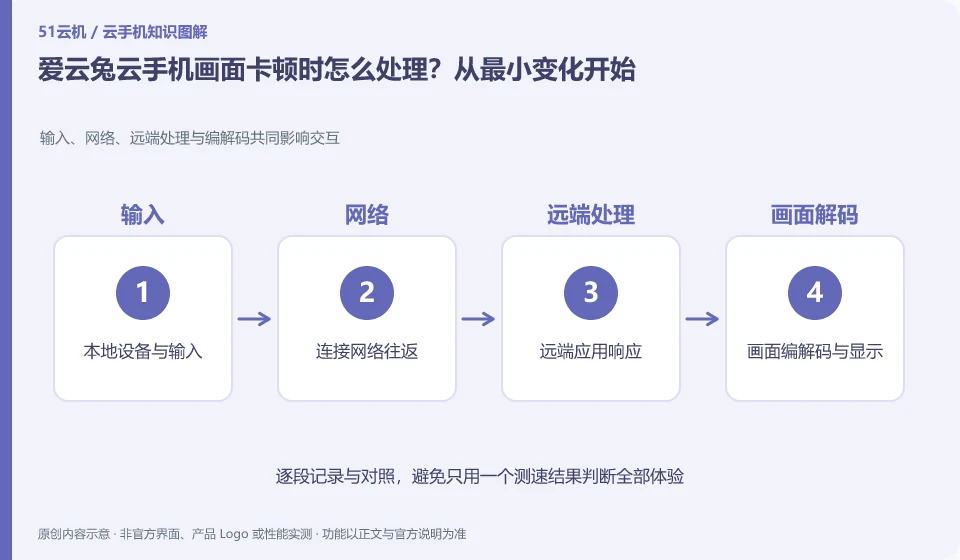
Regarding Aiyuntu cloud phone, the key to this problem is: first determine whether the entire interface is stuck or a single application is slow, and then decide to reduce the image quality, change the local network, or check the application status. Continuous restarts and replacements may temporarily change the phenomenon, but make it difficult to reproduce the original fault and may also introduce data risks.
Known information about Aiyuntu cloud phone and the key points of this verification
Aiyuntu official website introduces ARM server and container Android virtualization solutions. The official FAQ differentiates between hosting and remote viewing traffic, and provides instructions on authorization, failure, and expiration.
First use the system interface and the application interface to compare, and then switch networks; the general advice in the FAQ is not a reason to switch machines repeatedly without backing up.
The evidence boundaries of this article are: the help page version span is large; the free rights, models and recovery time must be reviewed in the current order.
Understand what this question covers
You can pin a simple action as a comparison, such as opening system settings and scrolling. If the system settings are also slow, first check the streaming and cloud machine status; if only a specific application is abnormal, record its version and current tasks. Keep test conditions consistent so the results can be used for feedback and selection.
Consider a specific scenario
Suppose you are about to apply a screen that is not smooth but you are not sure where the problem lies. This is a verification plan, not our experience using this product. First of all, "the system page and the target application have the same condition comparison record" as the completion standard. Save the original data before testing, and do not put the first attempt directly on important accounts and unique file copies.
The most easily overlooked thing in this scenario is: changing the network, machine, and package at the same time will lose comparable clues. Therefore, it is necessary to separate the status that can be seen on the interface from the results that really need to be delivered. Being able to reproduce, explain and withdraw is more valuable than getting only one success notification.
Check in this order
- Use the system settings to compare with the target application to locate the abnormal range.
- Adjust local network or image quality one item at a time, one condition at a time.
- When the abnormality persists, the test period, device number and comparison results are saved.
A reusable verification log
You can copy the table below into your notes. Record the device ID, verification date and current version. It helps identify which step failed and lets you repeat the same checks after changing clients or services.
| Checkpoint | What counts as a pass | What to do if it fails |
|---|---|---|
| local access | Record network type, time period and client status | First change the conditions and retest, do not attribute all abnormalities to the server |
| remote screen | System page scrolling and clicking can be independently used as controls | The overall screen is slow when checking the stream, not just reinstalling the target application repeatedly |
| Application access | The target service loading and desktop response are recorded separately. | When a single application is abnormal, check its version, status and cloud connection |
| Submit support | The problem period, device number and comparison results are all available | Do not provide real passwords and complete identity materials, save reproducible evidence first |
How to submit records to the support channel of Aiyuntu cloud phone
When submitting a question, first state "How to deal with the screen freeze on Aiyuntu cloud phone? Start with the smallest change", and then attach the device number, selected client and system version, failure steps and current time. The key point of verify in the brand information is "first compare the system interface and the application interface, and then switch networks; the general advice in the FAQ is not a reason to repeatedly change devices without backing up." Therefore, do not just send a screenshot of the homepage, nor do you need to put the complete password, verification code or private key in the problem description. When it comes to order or business qualifications, you should contact support from the official entrance where this product can be verified.
Sources and scope
Sources checked on October 26, 2026. This article combines AI-assisted research of public information with independent analysis and verification suggestions; we have not conducted a hands-on test of this product. Features and costs depend on the current official documentation and your order.
Continue reading:Cloud phone basics · Cloud phone troubleshooting guide · Brand reference directory。
Related questions to explore
- Why does viewing Aiyuntu use data when background cloud hosting does not?
- Managing Aiyuntu device sharing: ownership and access withdrawal
- Aiyuntu subscription expiry: plan renewal and file export separately
Back to the brand and product knowledge directory · Browse cloud phone topics