
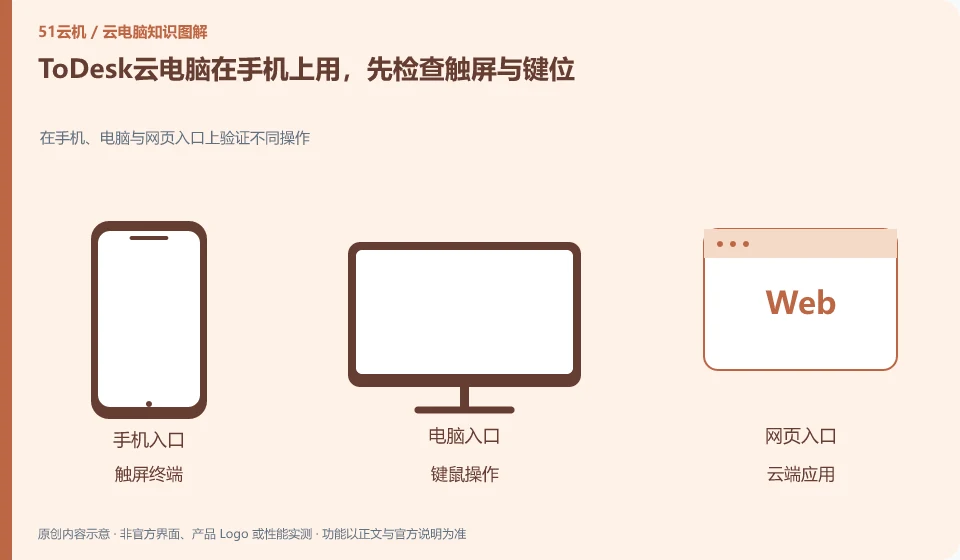
The mobile phone is an access terminal, and being able to display the complete desktop does not mean that all operations are suitable for touch screens. First verify the right button, key combination, mouse perspective or handle, and then determine whether your task requires an external keyboard, mouse and large screen.
Who this is for:For general readers and small teams who are working on ToDesk cloud PC, need to solve the specific problem in the title. Data verification date: 2026-10-26.
First, identify the product line
ToDesk's official help center has novice guidance on cloud PC purchase, connection, and package viewing. The download center also lists remote control and cloud PC as different entrances. The former connects to existing devices, and the latter provides a cloud computer that can be connected after purchase; the billing and data locations of the two products must be judged separately.
Mobile phones and tablets are terminals, and the operating methods still need to be adapted.
If you mainly edit documents, check Chinese input, text selection and window switching first; if you mainly play games, check key positions and account numbers according to game and platform rules. Do not regard the help article of the remote control phone as a complete description of the cloud PC mobile client.
After a mobile phone or tablet is connected to a cloud PC, calculations occur remotely, but clicks on the touch screen are converted into mouse and keyboard operations understood by desktop applications. Tasks that require precise dragging, key combinations, and long text input are different in difficulty from tasks that require just viewing information. First, separate "can see" and "can complete efficiently" according to the task, before deciding whether an external keyboard, mouse and large screen are needed.
Mobile terminal testing can start with Chinese input, right-click, scroll, drag and window switching, and then verify the session state after system hibernation, network switching and returning to the application. Don’t treat the mobile phone screen as if the cloud application has been closed. Mobile networks also need to pay attention to the trust level of traffic and public Wi-Fi; before using company information, confirm that the terminal and account meet the unit's requirements.
Check each requirement for your task
- List the operations that must be completed on the touch screen. Try input methods and key combinations first.
- Follow the official documentation to configure an external keyboard and mouse or screen mirroring, and check the compatibility conditions.
- Test whether you need to log in again after closing the screen, switching to the Internet, and returning to the application, and save your work.
Cloud gaming and complete computers are accepted separately
The game experience should focus on the three lines of graphics, control and conversation continuity. Log in using the officially allowed method, first check the key position, mouse lock or handle, and then observe the archive and exit process. Competitive performance will be affected by network and server matching, and it is not appropriate to quote a low-latency number promoted by a vendor as your own guarantee. Exit the game account before the temporary desktop ends, and confirm the archive synchronization according to the game's official method to avoid just closing the streaming window.
Where the conclusion applies and what to do next
ToDesk official FAQ 137 prompts that cloud PC resources will be recycled after exiting and should be backed up in time; if the actual package has additional storage arrangements, the current rules must still prevail. Remote control free rights cannot be automatically applied to the cloud PC package.
This article is based on public information. We have not purchased or tested the product. The scenarios describe ways to verify suitability, not customer case studies. Features and terms depend on the current official documentation for the relevant version.
Official sources and further reading
- ToDesk cloud PC Newbie Guide: The official document explains how to create a new cloud desktop, select a package, connect to the purchased cloud PC and check the expiration time.
- ToDesk cloud PC official download page: cloud PC and personal and enterprise remote control are separated in the download center; the entrance can distinguish product lines.
- ToDesk official website: Remote control product information; used to identify the boundary between remote control and cloud PC, without borrowing rights across products.
- ToDesk cloud PC official FAQ 137: The main agent verify's official FAQ clearly prompts cloud PC resource recovery and timely backup after exiting; this agent's independent crawling times out, and the rules are reviewed according to the current specific package.
Read more:Cloud PC knowledge hub · Find an article for your question · ToDesk cloud PC product line identification
Related questions to explore
- ToDesk remote control versus ToDesk Cloud PC: what is the difference?
- Getting connected to ToDesk Cloud PC: follow the official setup flow
- Are ToDesk Cloud PC plans and remote-control memberships interchangeable?
Back to the brand and product knowledge directory · Browse cloud PC topics