
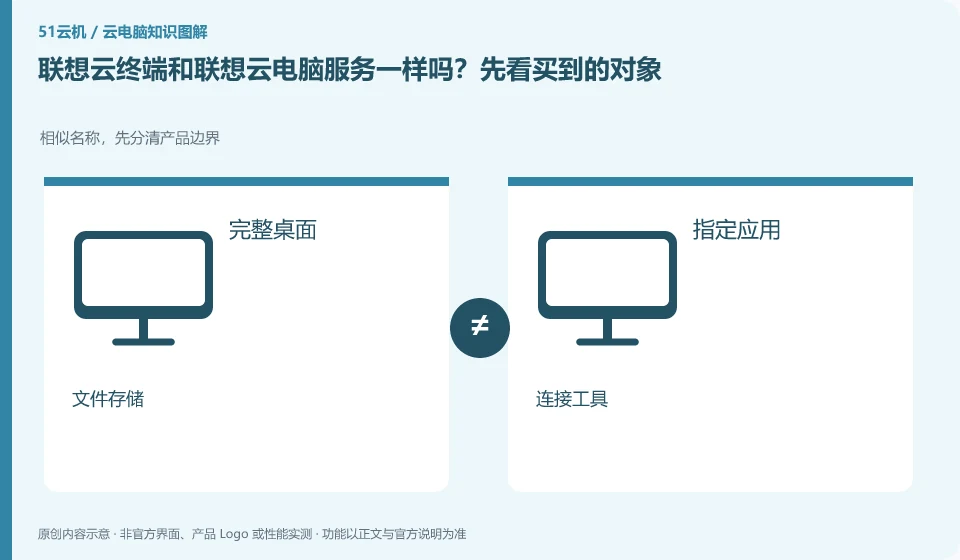
Cloud terminals are hardware that access or carry some desktop tasks. Complete services also require resources, platforms, authorization and management. Just because you purchase a certain terminal, it does not mean that it comes with public network Windows computing resources and permanent usage time.
Who this is for:General readers and small teams who are working on Lenovo Multi-Engine cloud desktop and need to solve the specific problem in the title. Data verification date: 2026-10-26.
First, identify the product line
The Lenovo Multi-Engine cloud desktop solution integrates VDI, VOI, IDV and TCI into unified desktop management, taking into account local terminal and data center resources at the same time. It discusses organizational desktop construction, and it cannot be deduced from "multi-engine" that each terminal has four operating modes at the same time.
Even if the names are similar, check the delivery objects item by item.
When checking the quotation, list the hardware, system, desktop platform, server and after-sales service separately to confirm which ones are provided by the school or company. The fact that a keyboard, mouse, and monitor can be plugged into the terminal only indicates that the interface exists. It also verifies the actual desktop architecture, drivers, and business actions.
To determine whether a service is a general cloud PC, you can ask four questions: whether you get a complete desktop or a designated application, who provides the computing device, where your personal files are placed, and what management operations users can do. Cloud gaming, cloud drives, remote control tools, and desktop virtualization software may all participate in cloud efforts, but they don't automatically offer the same product.
When the official page cannot be read or the function is not explained, the correct approach is to mark the item as pending confirmation and continue to verify it from the official client, service agreement or official support. Lack of evidence is not evidence of discontinuation, nor is it evidence of supporting functionality. Comparison articles should separate confirmed facts, analytical recommendations, and unknown conditions to prevent readers from paying or migrating information based on guesswork.
Check each requirement for your task
- Document the full product name and what it is delivered to: desktop, application, storage, or connection.
- Check the entry from the official catalog and check the functional description and agreement.
- Unstated installation permissions, saving rules and regional conditions are included in the list to be confirmed.
Peripheral compatibility requires verification of complete business actions
First write down the peripheral model, connection method, driver version and business action, and then check the corresponding client documentation. Plug in one device at a time when testing to avoid multiple microphones or cameras competing for the default input. For financial, medical or production equipment, obtain approval from the unit and arrange alternative working methods; it is not recommended to turn off security policies or install redirect plug-ins from unknown sources in order to allow the equipment to work.
Where the conclusion applies and what to do next
Lenovo personal computers, remote butler services, cloud terminal hardware and Duoqing desktop platform must be checked separately. You do not need to buy any hardware and come with a public network cloud PC.
This article is based on public information. We have not purchased or tested the product. The scenarios describe ways to verify suitability, not customer case studies. Features and terms depend on the current official documentation for the relevant version.
Official sources and further reading
- Lenovo Multi-Engine cloud desktop solution: Official description of the four architectures and unified management of VDI, VOI, IDV, and TCI.
- Lenovo computer cloud classroom solution: The official education plan introduces pre-installed software, images and user permissions by course.
- Lenovo Wentian WxVDI knowledge base entrance: For specific product entry, you need to search for configuration and management documents according to the project version.
Read more:Cloud PC knowledge hub · Find an article for your question · Lenovo Multi-Engine cloud desktop product line identification
Related questions to explore
- Lenovo Multi-Engine Cloud Desktop architectures: not four times the computing power
- Preparing Lenovo cloud classrooms for different courses
- Reusing old endpoints with Lenovo Multi-Engine Cloud Desktop: onsite checks
Back to the brand and product knowledge directory · Browse cloud PC topics