
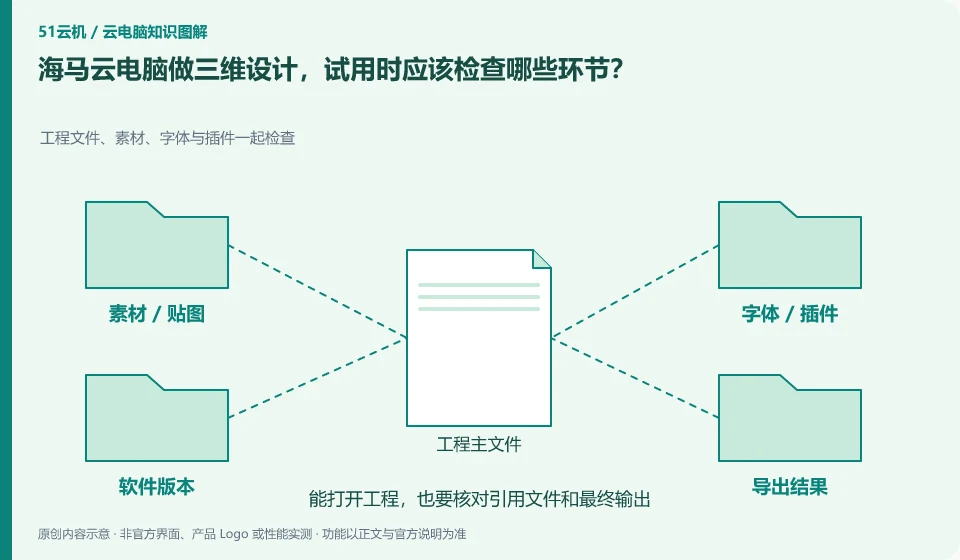
At a minimum verify software licensing, project dependencies, view interactions, GPU calculations and final export. The introduction of Haima Cloud PC includes design and creative direction, but whether different software and packages are compatible needs to be checked one by one with your own legal samples.
Who this is for:Regular readers and small teams who are working on Haima Cloud PC, need to solve the specific problem in the title. Data verification date: 2026-10-26.
First, identify the product line
Haima Cloud's GPUaaS platform lists cloud gaming, cloud PC, and cloud phone as different forms; the Haima Cloud PC help center also introduces clients, image quality settings, personal hard drives, and file transfers. When choosing products, you must distinguish between personal use portals and developer-oriented SDK and OpenAPI services.
Design tasks migrate project dependencies together
Choose a small project that contains both textures and plug-in dependencies, and save the preview locally for comparison. After opening the cloud, first check the dependency path, then verify the renderer and VRAM, and finally download the results to local inspection; you cannot judge the export quality based on the desktop screen alone.
Design projects often have more than one master file, and also reference fonts, textures, linked materials, plug-ins and renderers. Being able to open design software on a cloud PC is just the first step; you need to use representative projects to verify views, colors, input devices, rendering and export. If the project relies on a local shared directory, changes in the relative path after migrating to the cloud may also cause image loss, which is not necessarily due to a graphics card failure.
Copy an appropriately licensed sample project that you are allowed to transfer. Put its dependencies in a separate folder and create a reference preview. Test the same view and export format; comparing only the streamed image can be misleading because compression affects fine lines and text. Check client support separately for drawing tablets, 3D mice and professional color workflows. A working ordinary mouse does not validate those peripherals.
Check each requirement for your task
- Organize projects, textures, fonts, plug-ins and software licenses.
- Open the same sample and examine the dependency paths and key views.
- Complete a render or export and check the results and color requirements on another device.
There are usage conditions after the GPU name.
Design and AI work should be verified using small samples: open a representative project or run a public small model, record whether it can be started, VRAM occupation, output correctness and result export. Do not regard the vendor demo frame rate as your own test results, and do not upload business models or customer materials to desktops that have not yet confirmed authorization. For continuous rendering tasks, you also need to confirm whether session timeout and resource release will interrupt the operation.
Where the conclusion applies and what to do next
Just because the platform can be used in certain scenarios does not mean that every personal package allows continuous hosting, installation of any software, or the provision of the same graphics card.
This article is based on public information. We have not purchased or tested the product. The scenarios describe ways to verify suitability, not customer case studies. Features and terms depend on the current official documentation for the relevant version.
Official sources and further reading
- Haima CloudGPUaaS Product Matrix:Officially distinguishes between cloud gaming, cloud PC, cloud phone and developer-oriented SDK/OpenAPI.
- Haima Cloud PC official website: Describes the application direction of cloud computer interaction and office, gaming, etc.; the page is a dynamic product introduction.
- Haima Cloud PC basic operations: Introduces help topics such as image quality, standby, personal hard drive, file transfer, and multi-terminal use.
Read more:Cloud PC knowledge hub · Find an article for your question · Haima Cloud PC product line identification
Related questions to explore
- Haima cloud PCs, cloud gaming and cloud phones: choosing a product line
- Using Haima Cloud PC on a Mac: which software licenses need checking?
- Haima Cloud PC's “My Disk”: check file retention before saving
Back to the brand and product knowledge directory · Browse cloud PC topics