
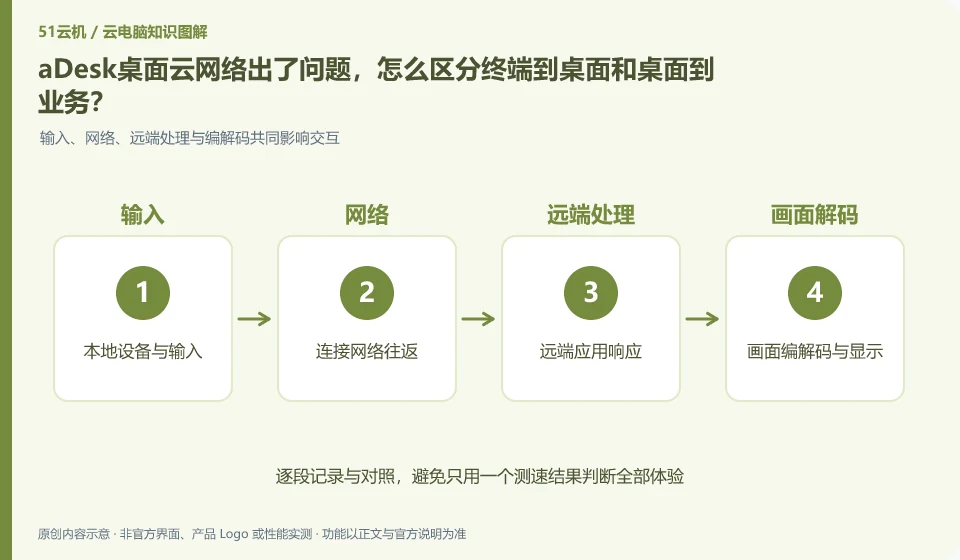
First, observe layer by layer: whether the terminal can enter the desktop, whether the business can be accessed inside the desktop, and whether the application itself is normal. Centralized operation does not mean that all links are the same. Network or business system problems may present different failure stages.
Who this is for:General readers and small teams who are researching SangforaDesk desktop cloud and need to solve the specific problem in the title. Data verification date: 2026-10-26.
First, identify the product line
SangforaDesk official information introduces the desktop delivery solution consisting of desktop cloud platform and cloud terminal, and discusses computing, storage virtualization and centralized operation and maintenance. Its typical purchasing target is organizations, and it cannot directly apply the recharge and startup logic of personal cloud PCs.
Draw separate lines for access network and business access
Record what happens during login, desktop display, and application access, and find a non-sensitive sample to reproduce. Do not restart all components or open network rules at the same time; have the administrator check by topology and pass the time and version information to official support.
The first line is from the user terminal to the desktop environment, which affects whether login, screen and input are possible; the second line is from the desktop to business applications or data, which affects whether the software can obtain data. Just because the terminal can open ordinary web pages does not prove that the first line is normal, and the fact that the desktop is displayed does not prove that the second line is smooth. First record whether the failure occurs at login, screen, application connection or file reading.
Fixed the same account and sample tasks, and only changed one condition when comparing different terminals or accessing the network. If the desktop operation is normal but a certain business system cannot be opened, provide the application address category, occurrence time and error information to the administrator, and have authorized personnel check the corresponding network and policy. Don't shut down your organization's firewall to verify connectivity, and don't attribute all problems to cloud endpoint hardware.
Check each requirement for your task
- Draw two paths from the terminal to the desktop and from the desktop to the business system.
- Record the fault link and compare the network and terminal one by one with fixed tasks.
- After desensitization, submit the time and error, and the administrator will check the corresponding path and policy.
Separate verification projects for disconnection and application dependencies
If you need to know how the specific architecture works after the connection is interrupted, you should also check the official conditions of the current version and terminal mode. The current article only separates two network issues and does not infer aDesk's offline capabilities from other vendor routes. Applications whose business relies on the network may not be able to continue completing tasks even if the desktop can still be displayed.
Where the conclusion applies and what to do next
The centralized operation of the desktop cloud does not mean that the terminal does not require a network, nor does it mean that all USB devices, software authorizations and offline tasks are naturally compatible.
This article is based on public information. We have not purchased or tested the product. The scenarios describe ways to verify suitability, not customer case studies. Features and terms depend on the current official documentation for the relevant version.
Official sources and further reading
- Sangfor desktop virtualization VDI product:Official description of centralized desktop, hyper-converged resources and desktop delivery methods.
- aDesk product introduction:Official versioned product description, deployment capabilities must match the actual version.
- Singfu Cloud Product Catalog: The boundary between cloud platform, desktop cloud and other products.
Read more:Cloud PC knowledge hub · Find an article for your question · SangforaDesk desktop cloud product line identification
Related questions to explore
- What makes up Sangfor aDesk? Endpoints, platform and applications
- Comparing aDesk and conventional PCs through full costs and task tests
- Will an aDesk image update affect employee files?
Back to the brand and product knowledge directory · Browse cloud PC topics