
Unable to log in, there is no device after logging in, and the connection fails after clicking to enter, these are three different problems. By first confirming which step you are stuck at, you can avoid doing a lot of invalid operations. This article is based on the CTYun Cloud PC public version document on October 10, 2026, and was compiled on October 29, without actual connection testing.
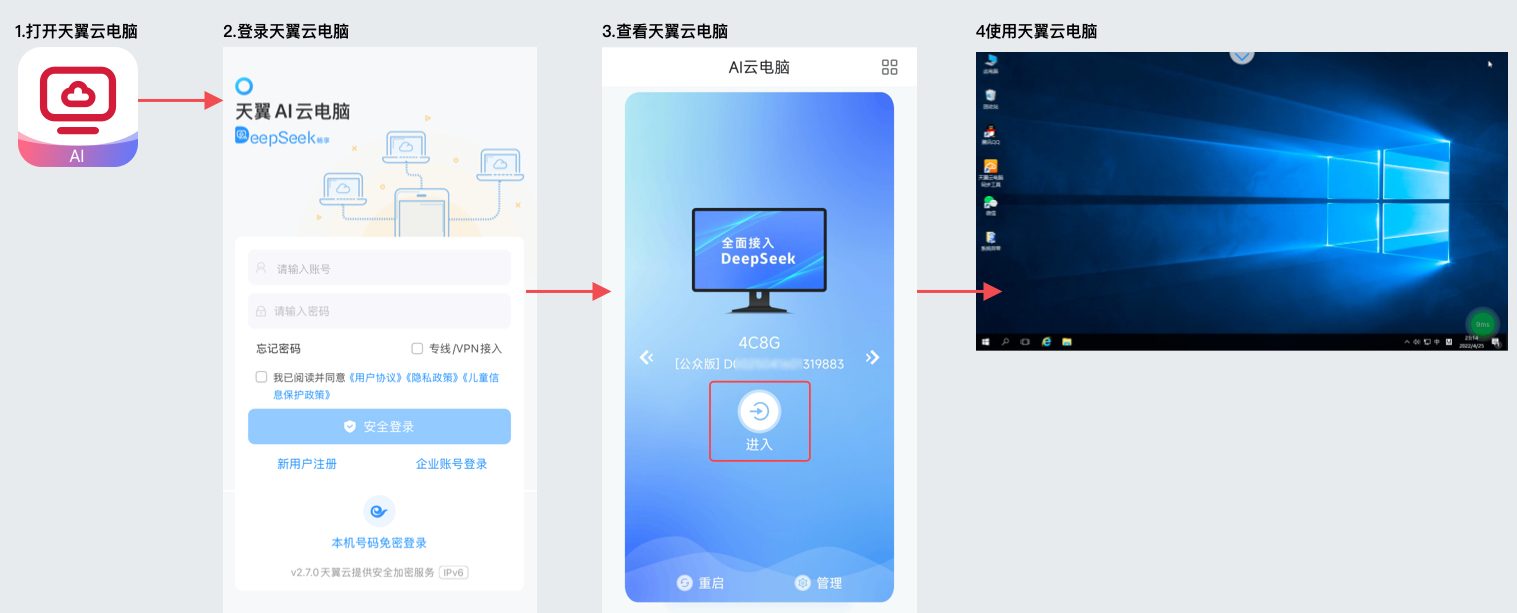
Official login path summary
Official document description: For official website ordering, use the bound mobile phone number as the login account, and the first password will be sent via SMS; for in-app registration and ordering, use the corresponding account password. If you forget your password, you can retrieve it from the mobile client. After logging in on the mobile terminal, view the cloud PC list and enter; you can also scan the QR code on the computer terminal.
This site recommends: Check separately according to the phenomenon
If the account verification fails, first check the original mobile phone number and the official retrieval portal; if the login is successful but the list is empty, first check whether the order account is used and whether the order is completed. Do not reset the cloud PC at the beginning, and do not treat the newly registered account as the original order account.
- Log whether the error occurred during login, device list or connection phase.
- Check the client source, current account and the account to which the order belongs.
- Save the accurate reminder and time of occurrence, and submit a work order to the official if necessary.
When there is a device but cannot be connected
The following are general suggestions on this site, not the repair steps promised in the document: Check whether the local network is stable, whether the client is adapted to the current system, and then observe the device status. Only change one condition in the same troubleshooting to avoid changing the network, reinstalling and resetting at the same time, which makes it difficult to determine the cause. Exit the session after using a public device without saving the account password.
Version and file security
The original article lists multiple types of terminal and browser access methods. Old version numbers are not equal to today's security recommendations; you should check the current official support list when installing. Test connections use files that do not contain sensitive information, and keep independent backups of important data. When taking a screenshot to ask for help, block the mobile phone number, verification code, QR code and private files.
Applicable conditions and source notes
- Check the current terminal support list and client version.
- Check the order account number, device status and specific error prompts.
- Confirm that the screenshots have been desensitized and do not easily reset the device during troubleshooting.
Source:Official source. This is a research summary, not a hands-on test. Features, prices and promotion eligibility are subject to the current official page.