
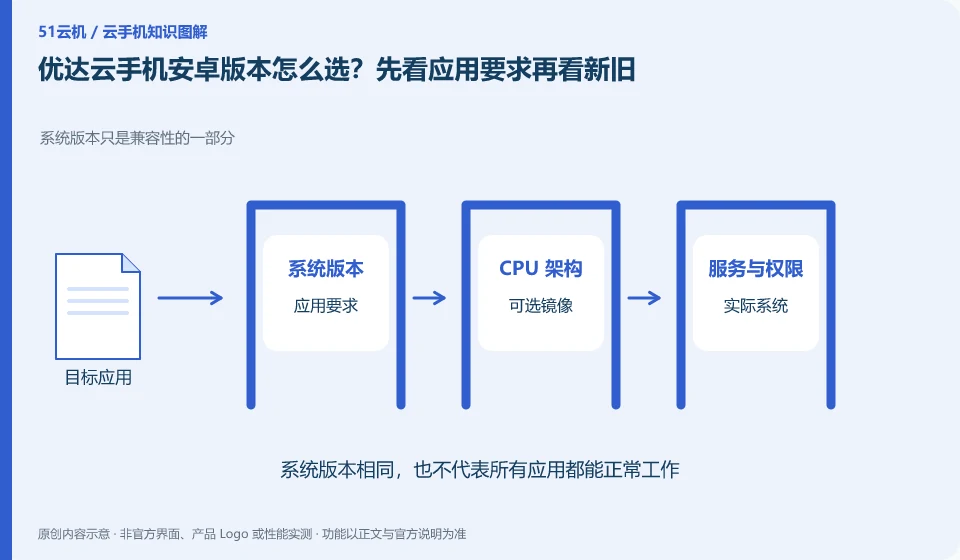
Regarding Yooda Cloud phones, the key to this issue is: newer Android versions may support new application interfaces, but may also change permissions and background behavior; older versions may be compatible with legacy applications, but are not suitable for tasks that require a new system. The choice should be based on the target application version and complete process, rather than simply chasing the latest.
Known information about Yooda Cloud phones and the key points of this verification
Yooda Cloud phone provides cloud game and application running services. The official introductory and basic function help explains package, upgrade, replacement and image quality options respectively.
There are different system clues in the early entry and subsequent catalogs, and the actual optional images and packages are the confirmation objects for this use.
The evidence boundaries of this article are: different system information appears in the old help and subsequent directories; the model purchased should be checked instead of following the old article.
How this issue applies to this product
There are different system clues in Yooda Cloud's early entry and subsequent help directories, which means that the system for determining today's package cannot be determined by searching for the earliest article. When verifying, the currently added page, selected model, and system information after creation will be recorded correspondingly. The old tutorial is only used to understand the version it explicitly covers.
If the goal is to run a historical application, first retain the application source and complete version, and then verify the system permissions and core operations; if a new application is required, also check whether the available models meet the requirements. The information on system selection, upgrade, and replacement should be read together, because the official old introduction reminds you of the impact of the new environment and data. This article does not recommend randomly creating and then replacing it repeatedly to try your luck; you should first prepare important files and account recovery methods, then control the scope of the test, and identify unverified functions.
After system verification, the client and application versions should also be saved. Subsequent changes in input, image quality, or permissions may come from different components. Complete records can reduce the risk of attributing all problems to the Android version; the conclusion from the old system to the new system still needs to be supported by actual processes rather than numerical sizes.
Understand what this question covers
The system range listed on the official website may not be available in every package, and the old tutorial may not be updated. Record the selected image and model before creation, and check it in the system settings after creation. If changing the system involves rebuilding the environment, the file should be exported first. It cannot be assumed that the application and login status will be automatically migrated.
Check in this order
- Compile the minimum system and service dependencies from the official application instructions.
- Check the available images for the current package and check the actual version after creation.
- Verify login, permissions and core processes before saving selection records.
Sources and scope
- Yooda Cloud mobile official website
- Getting Started Guide to Yooda Cloud Mobile
- Basic functions of Yooda Cloud phone
- Yooda Cloud mobile official help directory
Sources checked on October 26, 2026. This article combines AI-assisted research of public information with independent analysis and verification suggestions; we have not conducted a hands-on test of this product. Features and costs depend on the current official documentation and your order.
Continue reading:Cloud phone basics · Cloud phone troubleshooting guide · Brand reference directory。
Related questions to explore
- Will a Yooda configuration upgrade retain your data? Check the upgrade method
- Yooda Auto, HD or Smooth mode: choose for your current connection
- Replacing a Yooda cloud phone versus restarting it
Back to the brand and product knowledge directory · Browse cloud phone topics