
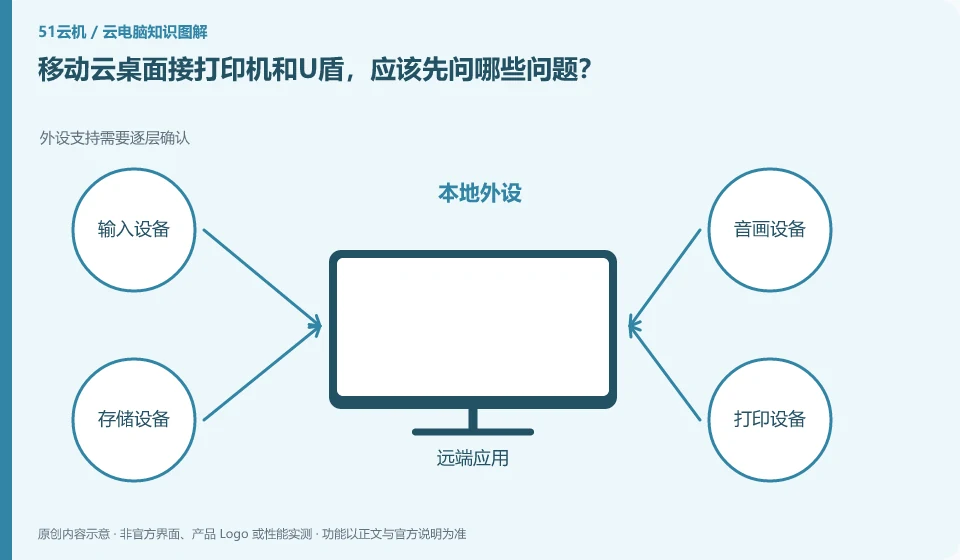
First confirm the specific client and administrator peripheral policies, and then verify the business actions. Jilin China Mobile Cloud desktop introduction mentions peripheral capabilities such as USB and printers, but whether it is applicable to your terminal, model and business system requires formal compatibility verification.
Who this is for:General readers and small teams who are researching China Mobile cloud PC and need to solve the specific problem in the title. Data verification date: 2026-10-26.
First, identify the product line
Cloud PC integration packages are available in China Mobile's business halls in different provinces; Jilin Mobile's cloud desktop introduction provides enterprise desktop capabilities such as centralized management, client access, and peripheral strategies. When comparing China Mobile Cloud products, you should clearly describe the provinces, public services, and government and enterprise projects.
Peripheral compatibility requires verification of complete business actions
Financial personnel should prepare peripheral model, driver version and signature software information. Complete printing or signing in a test environment approved by your organization first. Do not give the USB shield to unofficial personnel, and do not lift all file transfer and USB restrictions for access.
The "recognition" of peripherals is only half the process: the printer still needs to complete printing, the camera needs to be selected in the target conferencing software, and the USB shield involves drivers, business systems, and organizational permissions. The device channels provided by clients, browsers and mobile terminals may be different, so the successful experience on one terminal cannot be used to guarantee that another terminal will also be available.
First write down the peripheral model, connection method, driver version and business action, and then check the corresponding client documentation. Plug in one device at a time when testing to avoid multiple microphones or cameras competing for the default input. For financial, medical or production equipment, obtain approval from the unit and arrange alternative working methods; it is not recommended to turn off security policies or install redirect plug-ins from unknown sources in order to allow the equipment to work.
Check each requirement for your task
- Record the peripheral model, connection method such as USB or Bluetooth, and target software.
- Check peripheral support and administrator policies for current terminals and packages.
- Complete a real action such as printing, recording or signing, and then switch to the terminal to review.
Apply security controls to accounts and data permissions
Saving data in the cloud changes the location of the data and does not automatically eliminate the risk of account compromise, missharing, malware, and accidental deletion. Users should first confirm their login identity, retrieval method, authorized device and session exit; the organization also needs to stipulate who can copy files, install software, open an external network and assign desktops. Encryption or watermarking in promotional materials is just a capability, and the actual effect still depends on the version and configuration.
Where the conclusion applies and what to do next
The contracts and terminal ownership of provincial business offices cannot be regarded as a unified national policy; third-party products in the China Mobile Cloud market cannot be directly regarded as mobile self-operated cloud PCs.
This article is based on public information. We have not purchased or tested the product. The scenarios describe ways to verify suitability, not customer case studies. Features and terms depend on the current official documentation for the relevant version.
Official sources and further reading
- Jilin China Mobile Cloud desktop product introduction: The official provincial product page covers desktop specifications, browser and client access, USB and other peripheral policies and centralized management.
- Henan China Mobile Cloud computer application page: The provincial integration package page lists the contract and terminal ownership; it can only be used as a sample for interpretation of regional terms.
- China Mobile cloud PC monthly package product page: The business hall displays different specifications, entertainment duration and disk monthly packages. The actual purchase depends on the number and region.
Read more:Cloud PC knowledge hub · Find an article for your question · China Mobile cloud PC product line identification
Related questions to explore
- Where to order China Mobile Cloud PC: check region, number and edition
- Who owns the all-in-one device bundled with China Mobile Cloud PC?
- Are China Mobile cloud desktops and mobile-access cloud PCs the same service?
Back to the brand and product knowledge directory · Browse cloud PC topics